
WooCommerce Frequently Bought Together in WoodMart: no plugin required
 Serg Sokhatskyi
3 min read
Serg Sokhatskyi
3 min read
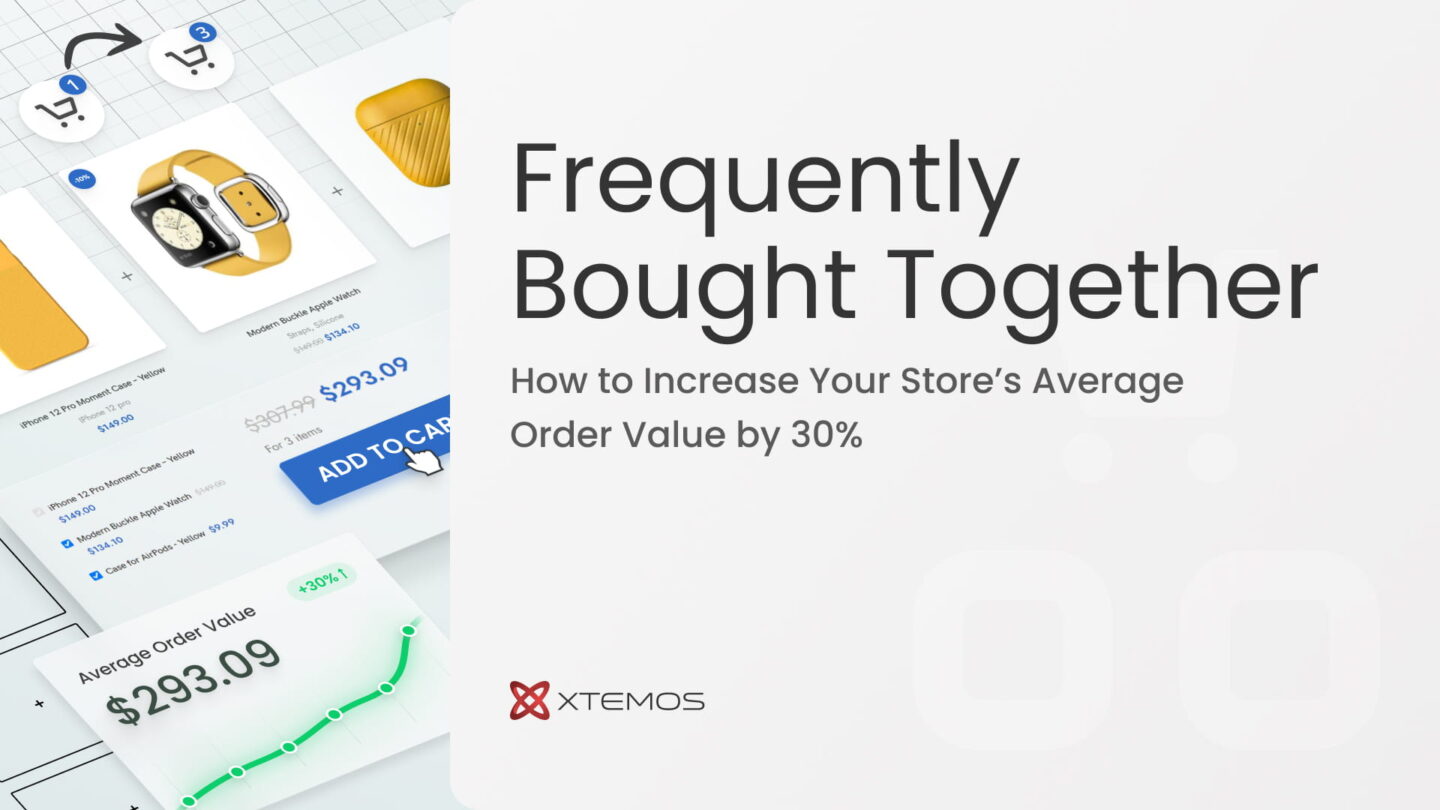
WoodMart supports cross-sells in two distinct ways.
The first is standard WooCommerce cross-sells: products you assign per item under Product Data → Linked Products → Cross-sells. WoodMart picks these up automatically and shows them in the cart drawer and on the cart page, with no additional setup.
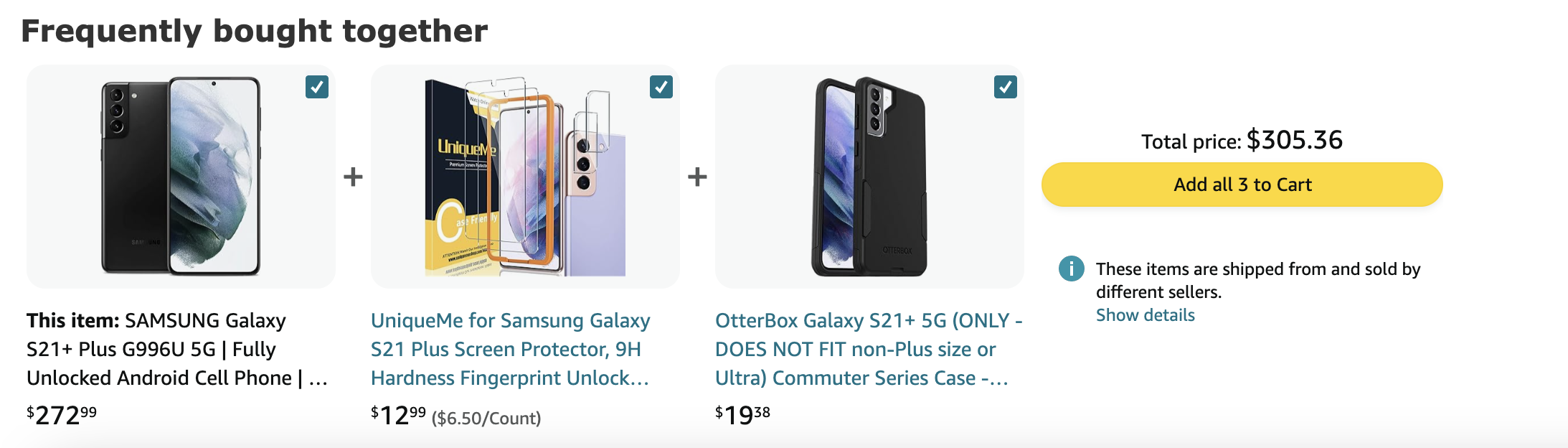
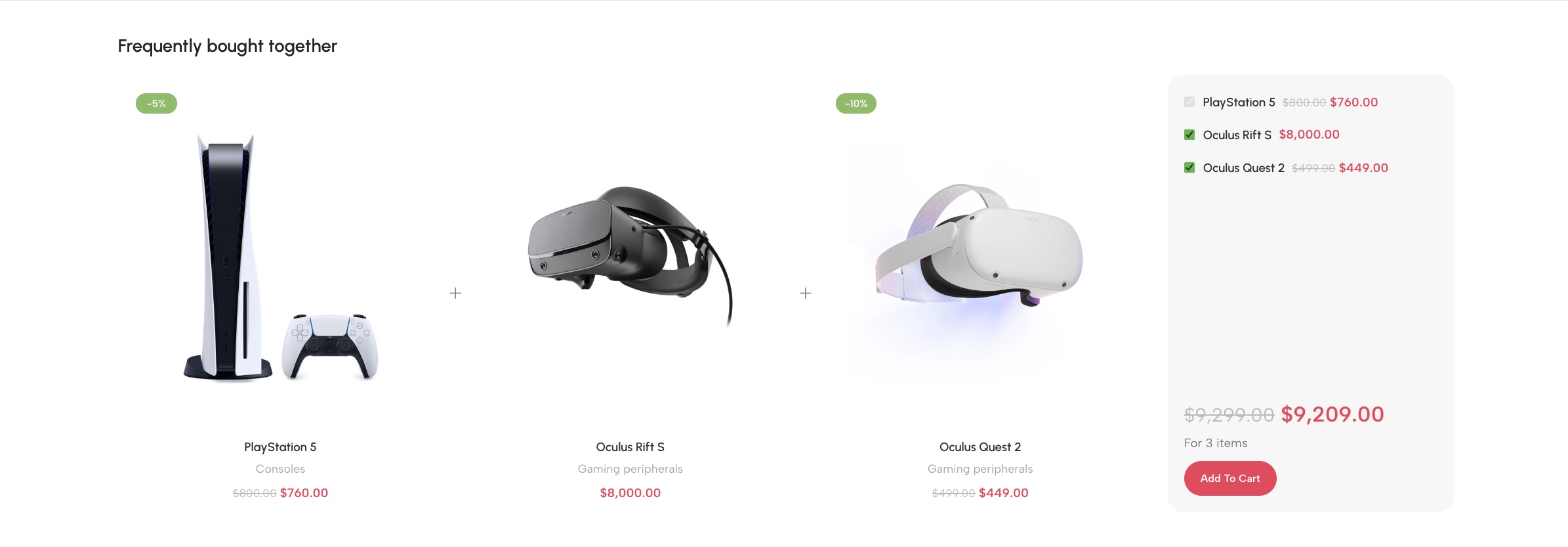
The second is WoodMart’s own Frequently Bought Together widget, a dedicated section that appears below the Add to Cart button on product pages. Customers see companion products as individual checkboxes with a combined price that updates as they toggle items. This is built into WoodMart, no plugin required. You enable it under Theme Settings → Shop → Frequently Bought Together, create bundles under Products → Frequently Bought Together, and assign them per product from the product data panel.
Setting up cross-sells in WoodMart
Option 1: native WooCommerce cross-sells (cart page and cart drawer)
No extra theme setup needed. Open any product, go to Product Data → Linked Products → Cross-sells, and pick the products to suggest. WoodMart displays them in the cart drawer (assuming the drawer is enabled in theme settings) and on the /cart page. This works well for lightweight suggestions at checkout when you don’t need the checkbox-and-total UI of the FBT widget.
Option 2: WoodMart’s FBT widget (product page)
WoodMart’s FBT widget puts a bundle section below the Add to Cart button with product checkboxes, per-product discounts, and a live combined total. It’s configured in three places.
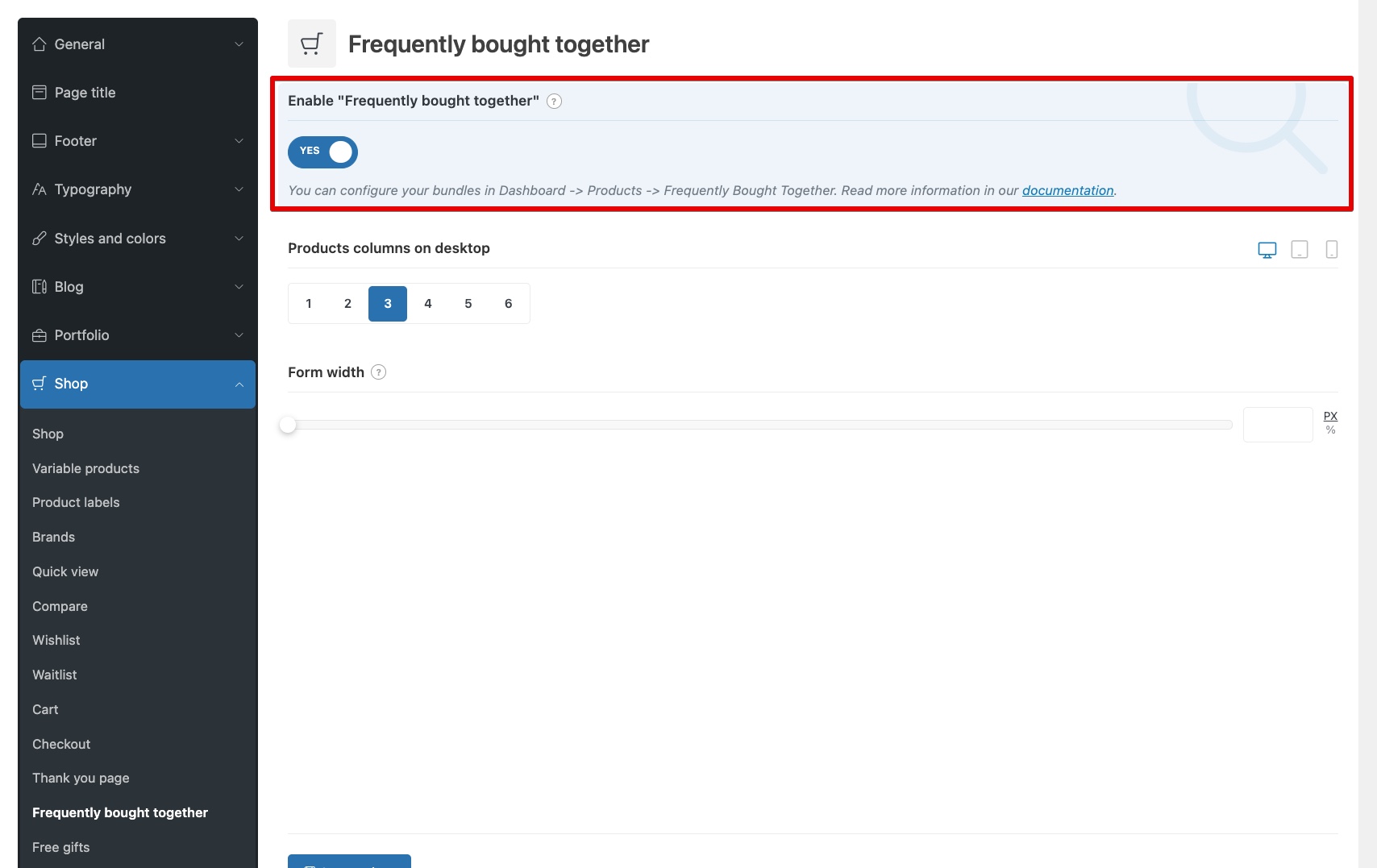
Step 1. Enable in theme settings
- Go to Theme Settings → Shop → Frequently Bought Together.
- Turn on the feature and save.
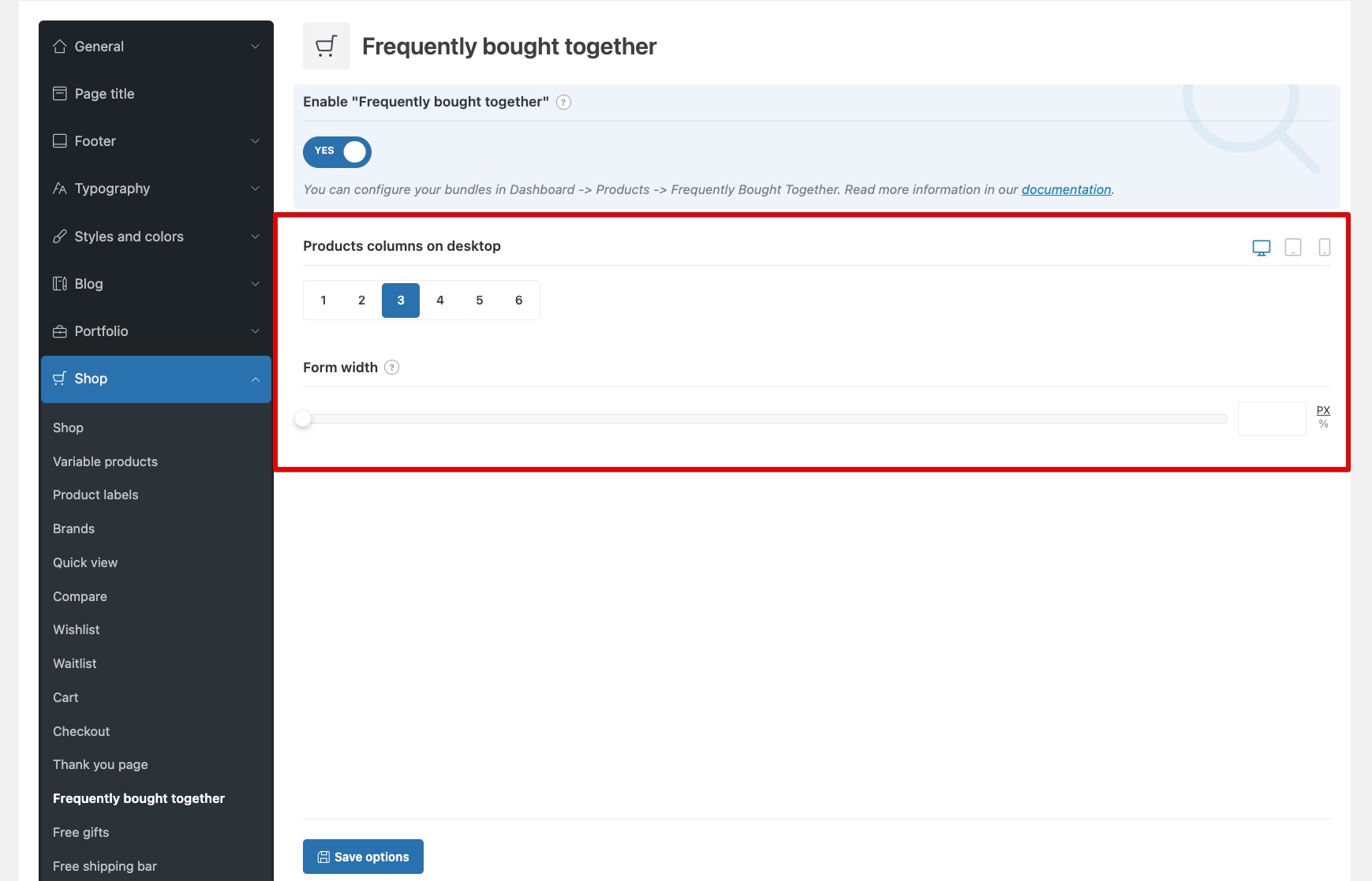
Step 2.Set display options
- Set the number of product columns for desktop, tablet, and mobile.
- Adjust form width to match your store layout.
Step 3.Create a bundle
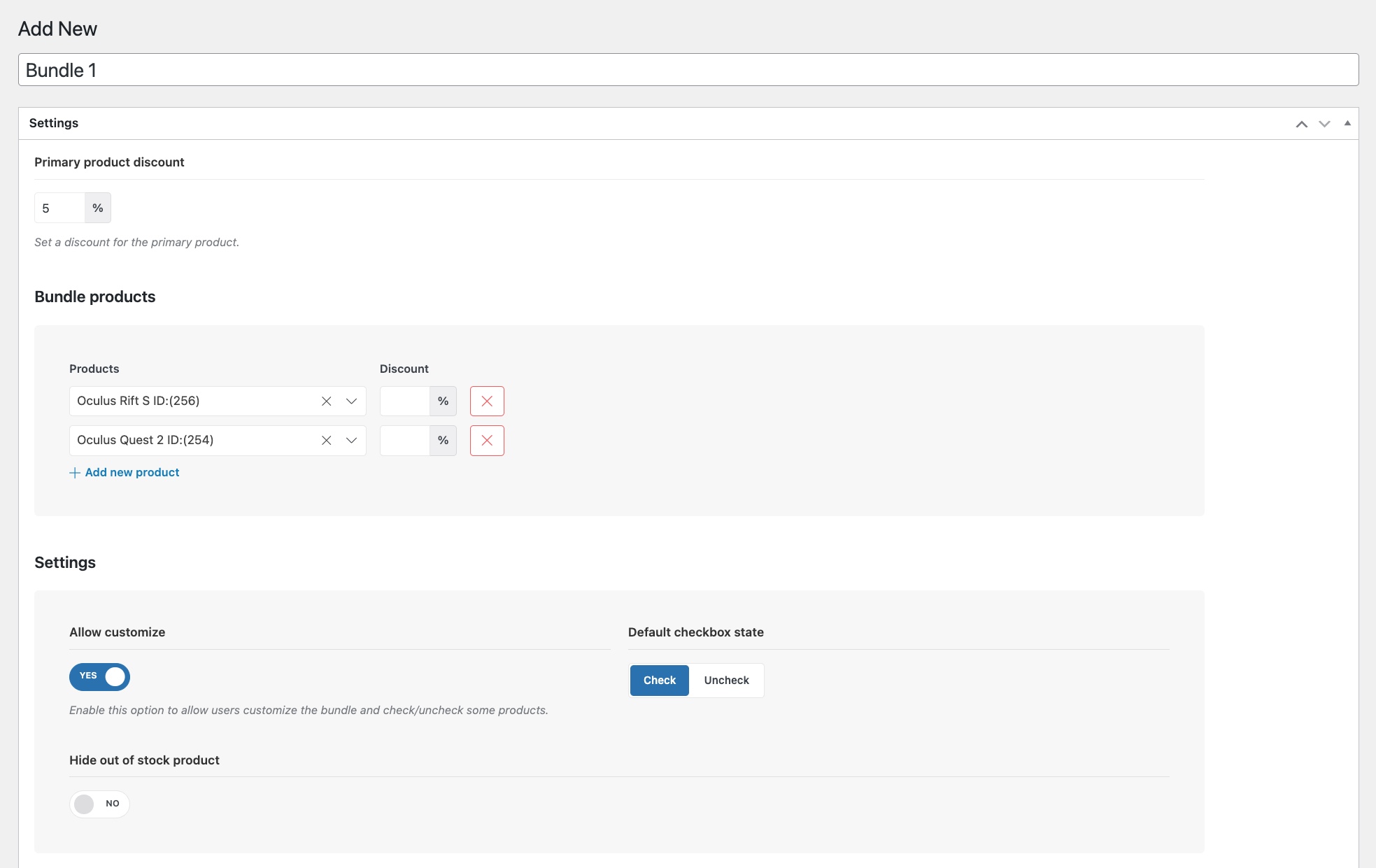
- Go to Products → Frequently Bought Together and click “Add New.”
- Add the products you want to group.
- Optionally set a per-product discount on any item in the bundle.
Step 4.Assign to a product
- Open the product.
- In Product Data, open the Frequently Bought Together tab and select the bundle.
- Save.
Step 5.Check on the front end
- Open the product page. The FBT section should appear below Add to Cart with checkboxes and a combined total.
When to use a plugin instead
WoodMart’s native FBT covers most cases. Reach for a plugin when you need recommendations generated from purchase history rather than manual assignments, per-category rules, or detailed bundle analytics. WooCommerce Product Recommendations (official WooCommerce extension) and YITH WooCommerce Frequently Bought Together are the two common options.
A few practical notes
Pair products customers actually need together. A phone charger bundled with a phone makes sense; a tote bag does not. Use the per-product discount field in the bundle editor if you want discounts to show up on the widget. Keep bundles current: if a product gets deleted without clearing its bundle assignment, the widget shows a broken entry on the product page.
Conclusion
Two tools, two spots: standard cross-sells in the cart, the FBT widget on the product page. To see what’s working, watch attachment rate (how often a suggested product gets added) and AOV on orders that include bundle items. If you need recommendations that go beyond manual bundle assignments, that’s when a plugin earns its place.
Ready to get started?
Explore WoodMart’s full set of built-in e-commerce features, from Frequently Bought Together to product page layouts.


 Bogdan Kononov
Comments