How to show an estimated delivery date in WooCommerce
Show estimated delivery dates in WooCommerce with WoodMart: rules by shipping zone, method and product, cut-off times and holidays, product page to order email.
 Serg Sokhatskyi
6 min read
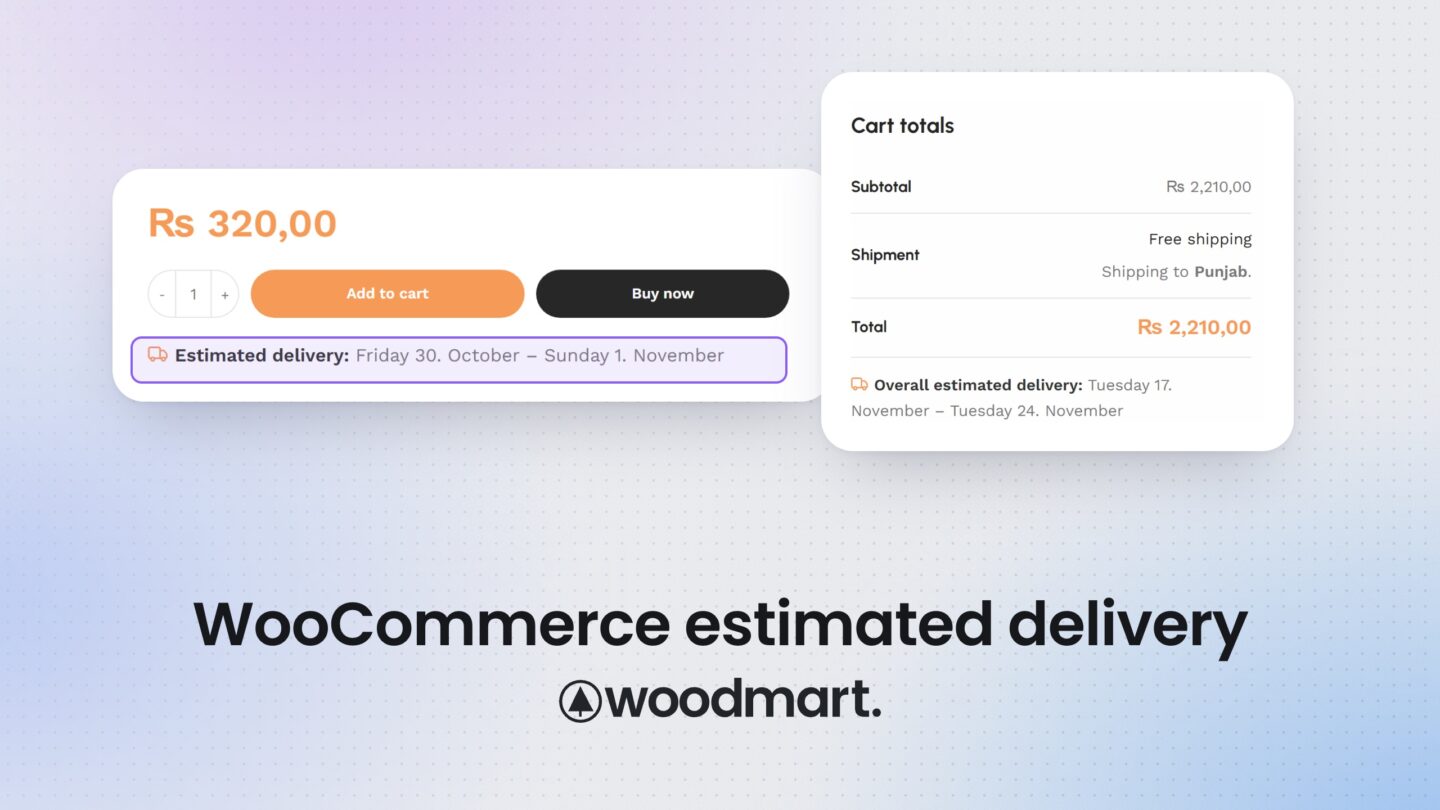
“When will it arrive?” is one of the last questions a shopper asks before buying. If the answer is buried in a shipping policy page, some customers leave to find it, and some never come back. Showing a clear delivery date next to the Add to cart button answers the question at the moment it matters.
In this guide, you will learn how WoodMart’s built-in Estimate delivery feature calculates delivery dates from your own rules, where those dates appear in your store, and how to set it up for different shipping zones, products, and holidays.

Show delivery dates based on rules, not fixed text
The key idea behind this feature is simple: you describe how your shipping works once, and WoodMart calculates the date for every visitor automatically.
A typical rule says something like “Standard shipping in the USA takes 3 to 5 days, we don’t ship on weekends, and orders placed after 2 PM go out the next day.” WoodMart turns that into a real date range, such as “Arrives November 3 to November 5”, and updates it every day. You don’t have to edit product descriptions or remember to change a banner before a holiday.
Because rules can target shipping zones, shipping methods, and product groups, one store can show different estimates for local and international orders, or for in-stock and made-to-order products.
What WoodMart adds to the default WooCommerce setup
The default WooCommerce setup does not calculate or display an estimated delivery date out of the box. Many stores work around this by renaming a shipping method, for example “Standard shipping (3 to 5 business days)”. That text is fixed: it doesn’t skip weekends, react to a cut-off time, or show an actual date.
| Feature | Default WooCommerce | WoodMart | Dedicated plugin |
|---|---|---|---|
| Estimated delivery date on the product page | Not included out of the box | Built in | Available in extensions such as Estimated Order Delivery Date |
| Cart, checkout and order email | Not included | Mini cart, cart, checkout, order details and order received email | Usually included, depends on the plugin |
| Rules by shipping zone and method | Zones and methods exist, but carry no delivery dates | Yes, one rule per zone and method, or one general rule | Usually included |
| Cut-off time, skipped weekdays and holidays | Not included | Yes | Varies by plugin |
| Shop and category page display | Not included | Not listed as a display location | Some plugins offer it |
| Extra plugin to install and maintain | Not applicable | No, part of the theme | Yes, often a paid yearly license |
If you only ship within one area and your delivery time never changes, a line of text in the shipping method name may be enough. If you use WoodMart, the built-in feature gives you calculated dates, shipping rules, and a holiday calendar without adding another plugin. A dedicated plugin can still make sense if you need estimates on shop and category grids, live dates from carrier APIs, or a delivery date picker at checkout, which is a different feature.
Where the estimated delivery date appears
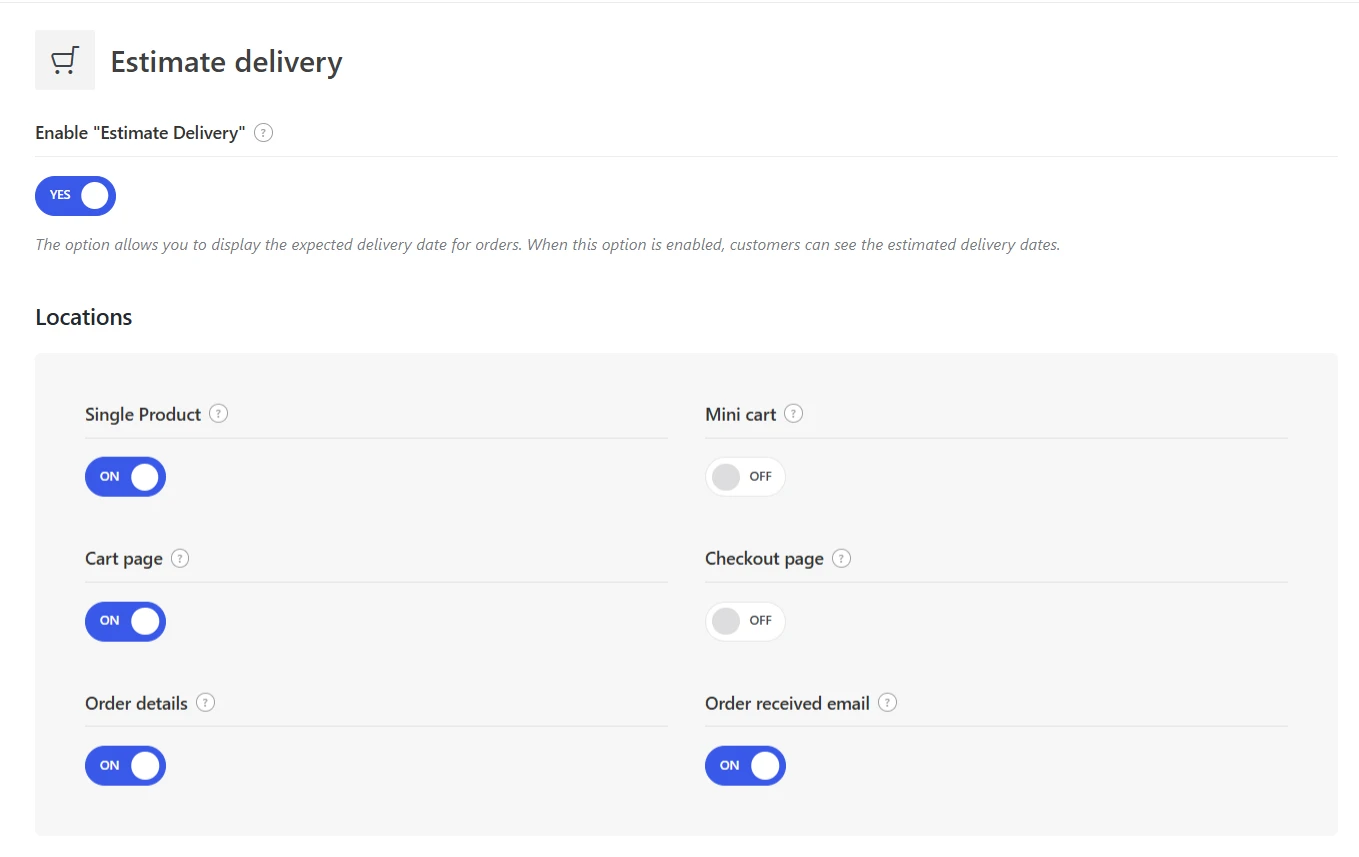
WoodMart can show the estimate at each step of the buying journey. You choose the locations in the theme settings:
- Single product page: the estimate for that product, near the Add to cart button.
- Mini cart: a reminder while the shopper keeps browsing.
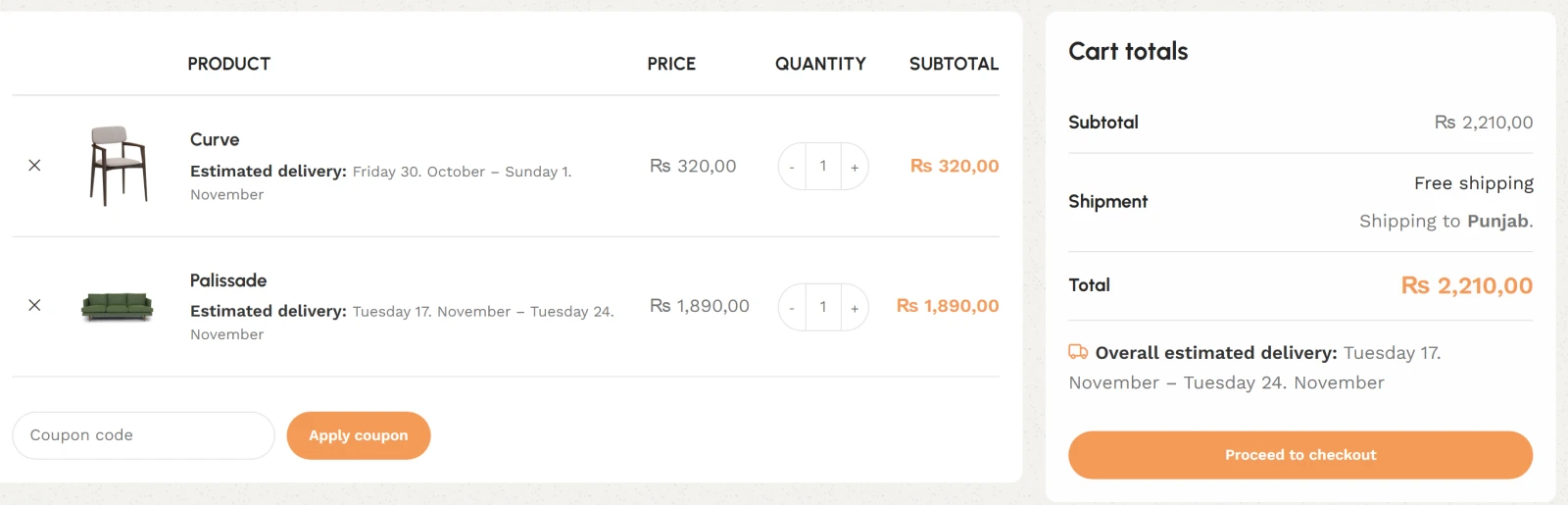
- Cart page and checkout page: the estimate for each product in the order.
- Order details and order received email: the estimate the customer saw, saved with the order.
For orders with several products, you can also turn on Overall delivery dates. WoodMart then shows one combined range for the whole cart in the cart and checkout totals, based on the latest dates of all eligible products. This is clearer than asking a customer to compare three different estimates.
You can show the estimate as Specific dates (for example, “November 10 to November 14”) or as a Days count (for example, “3 to 7 days”). Specific dates are usually easier for shoppers to plan around.

How to set up estimated delivery in WoodMart
The setup has two parts: global settings in Theme Settings, and delivery rules under Products.
Step 1: Turn on the feature and choose locations
Go to Dashboard → Theme Settings → Shop → Estimate delivery and turn on Enable “Estimate Delivery”. Select the Locations where the estimate should appear, choose the Display format, and set a Date format if you use specific dates (or inherit it from WordPress).
If your product pages are served from a full-page cache, turn on Enable fragments updating so the date stays correct for every visitor.
Step 2: Create a delivery rule
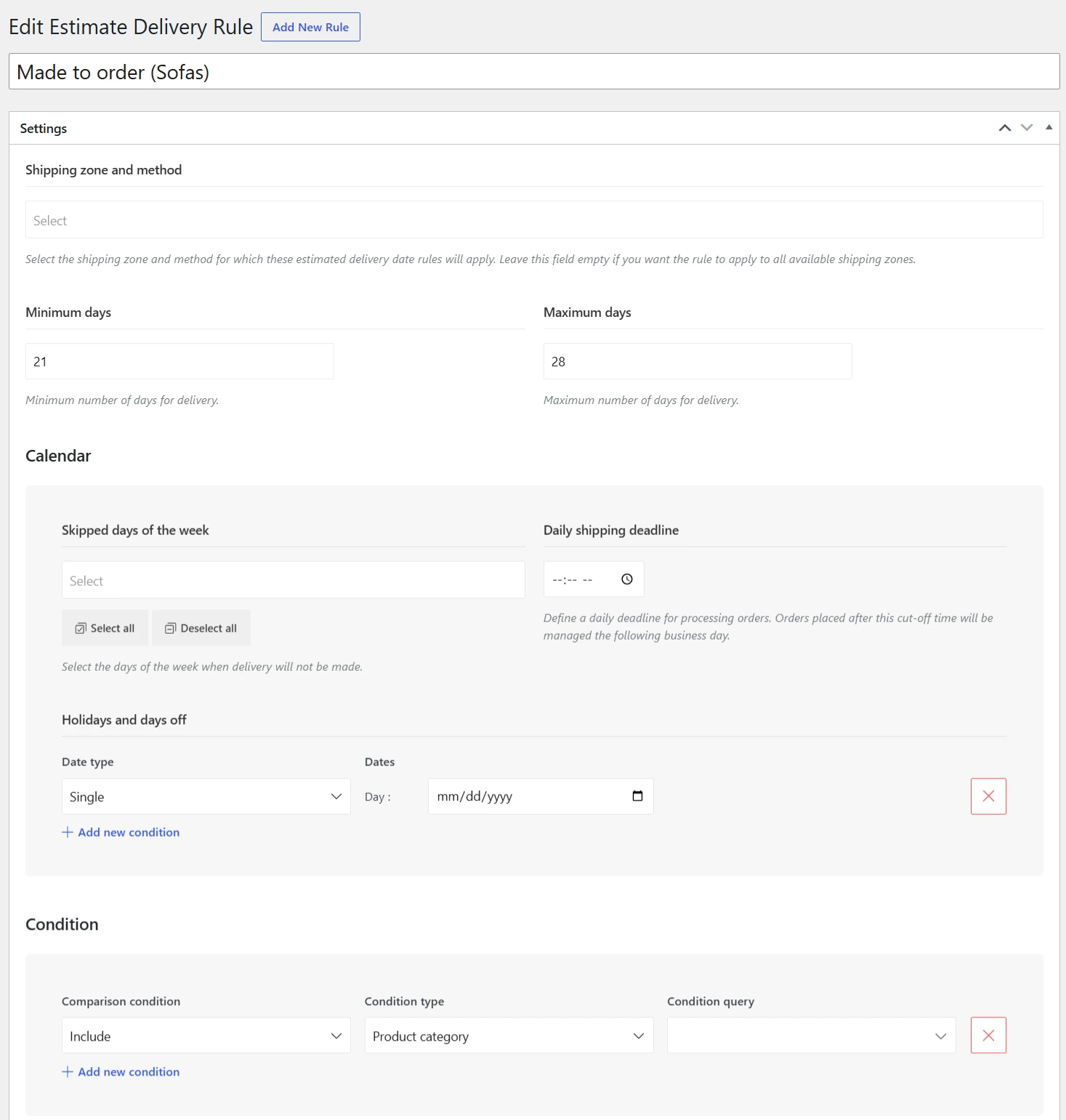
Go to Dashboard → Products → Estimate Delivery, add a new rule, and give it a clear title, such as “USA standard shipping”.
Step 3: Choose the shipping zone and method
In Shipping zone and method, select the WooCommerce shipping methods this rule applies to. Leave the field empty to make the rule apply to all zones and methods. The zones themselves are managed as usual in WooCommerce → Settings → Shipping → Shipping zones.
Step 4: Set the delivery calendar
- Skipped days of the week: days you don’t deliver, such as Saturday and Sunday.
- Daily shipping deadline: orders placed after this time are counted from the next available day.
- Holidays and days off: single dates or date ranges to exclude, such as a holiday break.
Step 5: Set the minimum and maximum days
Enter both values to show a range. Enter only Minimum days to show the earliest date, only Maximum days to show the latest date, or the same number in both fields to show a single date.
Step 6: Choose products and priority
Use Condition to include or exclude products. Conditions can target all products, specific products, categories, tags, attributes, product types, stock statuses, and shipping classes. If several rules match one product, rules tied to the selected shipping method are checked first, then the rule with the higher Priority value. You can also add Tooltip content to explain the estimate, for example “Delivered by our own courier”.
If you use a custom single product layout built with the WoodMart layout builder, add the Product estimate delivery element where the date should appear. On cart or checkout pages built with WooCommerce blocks, add the Overall estimate delivery block.
Practical examples
Here are a few setups that match common store situations:
- Standard and express shipping: create one rule for the Flat rate method with 3 to 5 days and another for an Express method with 1 to 2 days. Each customer sees the estimate for the method that applies to them.
- Local and international orders: a rule for your home zone with 2 to 4 days, and a separate rule for an international zone with 7 to 14 days.
- Made-to-order products: a furniture store can add a rule with a condition for the “Custom sofas” category, a higher priority, and 21 to 28 days, while ready-to-ship items keep their shorter range.
- Backordered products: a rule with a stock status condition for products on backorder can show a longer range, so customers know the wait before they buy.
- Holiday closures: add your holiday break once under Holidays and days off, and every estimate moves forward automatically during that period.

Best practices
- Keep estimates realistic. Use your real carrier times plus processing time. A date you meet builds more trust than an optimistic one you miss.
- Cover every visitor. Make sure a general rule exists (shipping zone field left empty) so visitors whose shipping zone isn’t known yet still see an estimate.
- Update the calendar ahead of holidays. Add closures before peak seasons so the dates stay accurate.
- Test as a customer. Check a product page, the cart, and checkout as a logged-out visitor, with and without caching.
- Know the limits. Estimates are not generated for virtual, external, or non-purchasable products, and the product page estimate is hidden when a product is out of stock.
Conclusion
A clear delivery date answers one of the most common questions shoppers have before checkout. The default WooCommerce setup leaves this to static text or an extra plugin. WoodMart includes Estimate delivery as part of the theme, so you can create rules by shipping zone, method, and product, skip weekends and holidays, and show calculated dates from the product page through to the order email. Start with one general rule, then add more specific rules as your shipping options grow.
See the Estimate delivery documentation for every option, or explore the Conversion & upsells features it works alongside.