How to add a size guide to WooCommerce
Add reusable size guides to WooCommerce with WoodMart. Assign guides to categories, override them per product, and show them in a popup or inline.
 Serg Sokhatskyi
7 min read
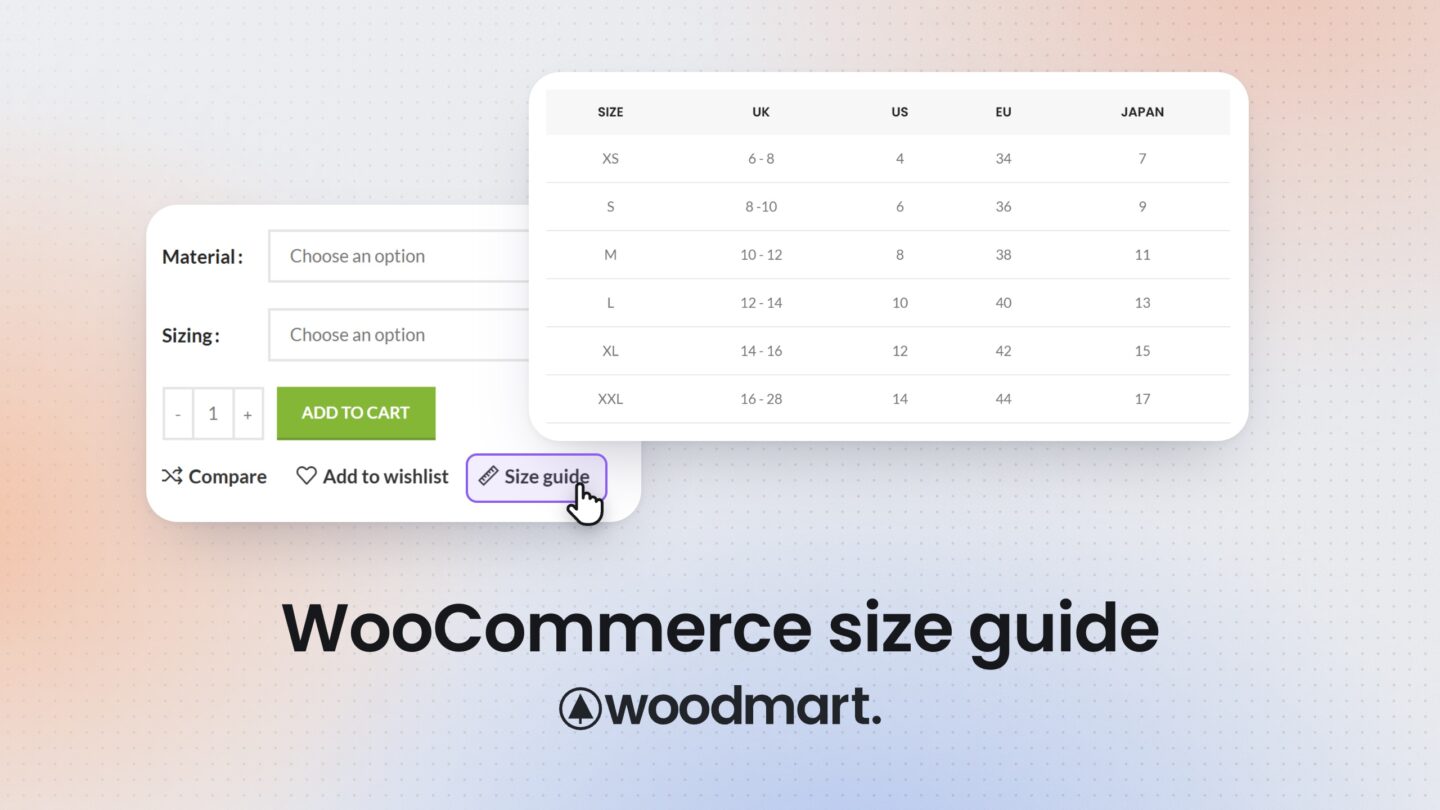
When shoppers can’t tell whether they need a Medium or a Large, they guess, leave the page to look for sizing details, or don’t buy at all. A size guide puts real measurements next to the size options, so customers can choose with confidence.
The default WooCommerce setup lets you create sizes as product attributes and variations, but it does not include a size guide feature out of the box. This guide shows how WoodMart’s built-in Size guides work, how to assign them to categories and products, and how they appear on your product pages.
Create one size guide and reuse it across products
The most useful part of WoodMart’s size guides is that they are reusable. You build a guide once, for example “Men’s shirts” or “Running shoes”, and assign it to a product category. Every product in that category inherits the guide automatically.
This matters as soon as you sell more than a handful of sized products. If 30 shirts share the same measurements, pasting a table into 30 product descriptions means 30 places to update when your sizing changes. With a category guide, you edit one guide and every product shows the new version.
When one product needs different sizing, such as a brand with its own fit, you can give that product its own guide or hide the guide on it completely.
What WoodMart adds to default WooCommerce
| Feature | Default WooCommerce | WoodMart |
|---|---|---|
| Size options (S, M, L, XL) | Product attributes and variations | Uses the same WooCommerce attributes and variations |
| Measurement chart | Not included out of the box; can be added manually in product content or with an extension | Dedicated Size guides with a built-in table editor |
| One guide for many products | Not available in the default setup | Assign a guide to product categories; products inherit it |
| Product-level control | Not available in the default setup | Pick a different guide per product, or hide the guide |
| Display on the product page | Wherever you place the content manually | Popup button added automatically on the standard product page |
| Custom product layouts | Depends on your theme or page builder | Size guide button and Size guide content elements for Gutenberg, Elementor and WPBakery |
If you only sell a few sized products, a table in the product description may be all you need. If you already use WoodMart, the built-in feature gives you reusable, category-based guides and a product-page popup without installing another plugin. A dedicated size chart plugin may still be useful if you need controls beyond WoodMart’s built-in options, or if your store doesn’t use WoodMart.
How to add a size guide in WoodMart
1. Enable size guides
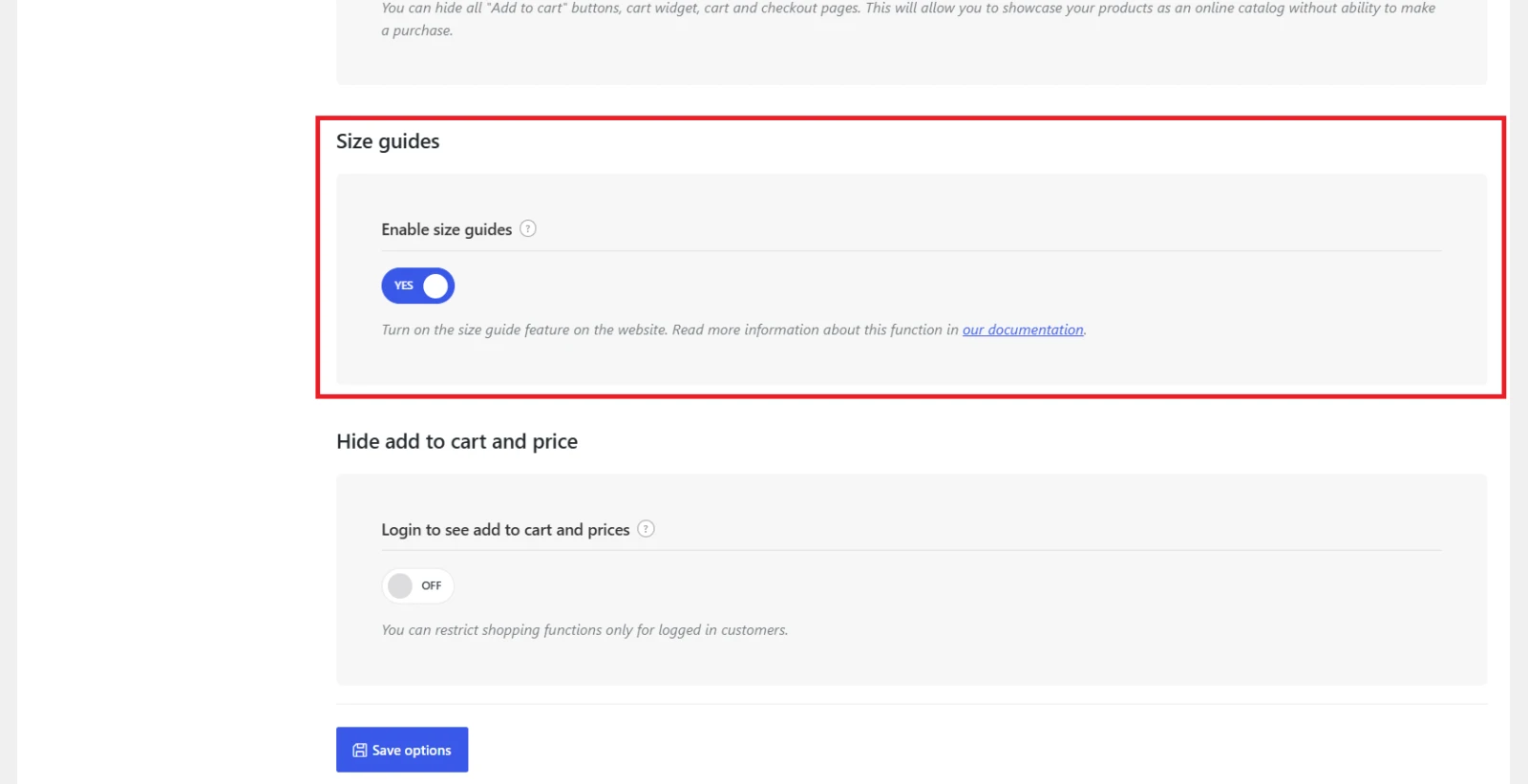
In your WordPress dashboard, go to Theme Settings → Shop, turn on Enable size guides, and save. A Size Guides section then appears under Products.
2. Create the guide and add measuring instructions
Go to Products → Size Guides, add a new guide and give it a clear name, such as “Women’s tops”, “Running shoes”, or “Jeans”. Clear names make guides easier to assign later.
Anything you add in the editor appears above the table in the size guide popup. Use it for measuring instructions, fit notes (“this style runs small”), or a measurement diagram image.
3. Build the size table
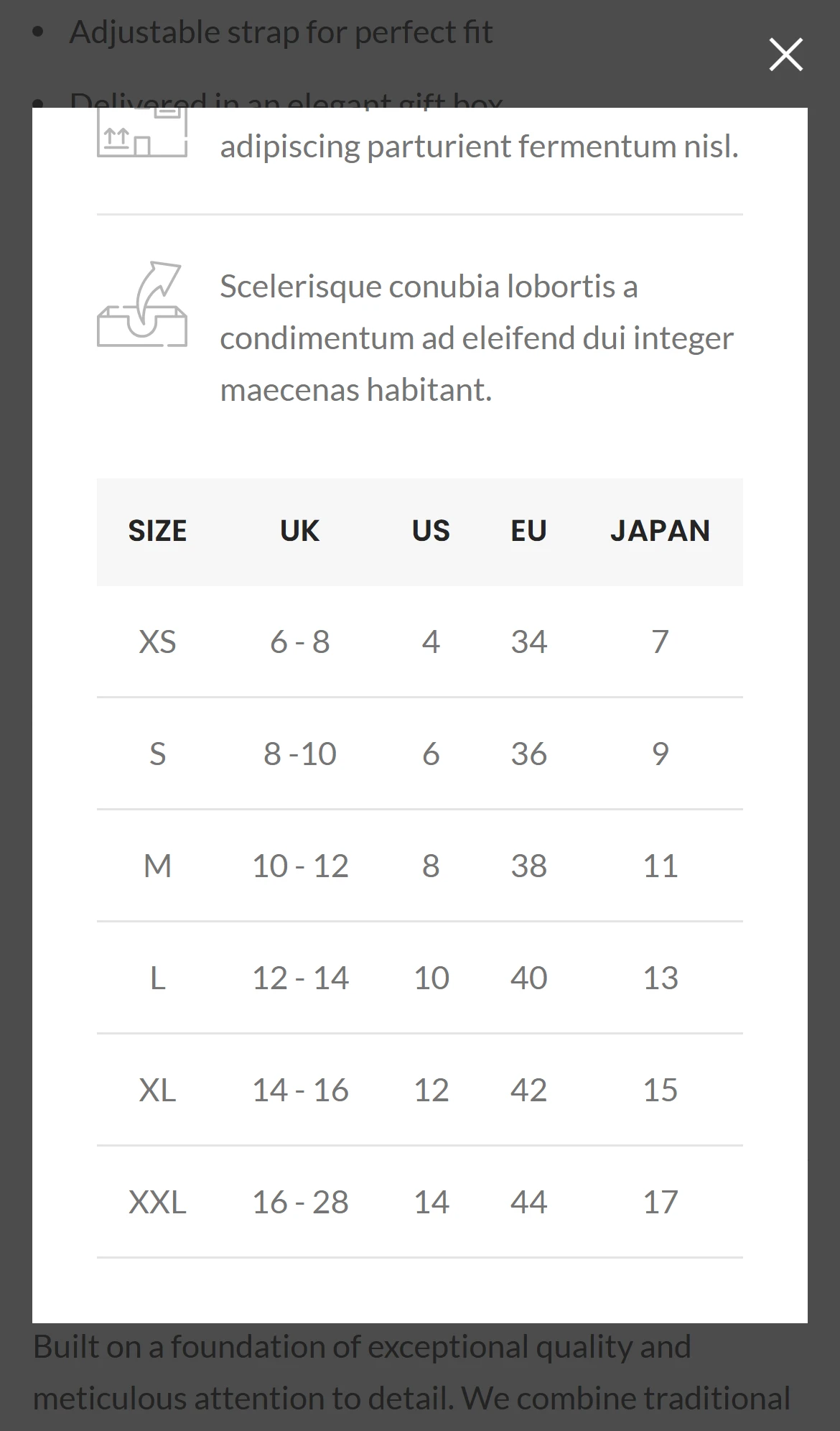
Edit the column headings and values in the Create/modify size guide table panel. A women’s tops guide might look like this:
| Size | Chest | Waist | Hip |
|---|---|---|---|
| XS | 32-34 in | 26-28 in | 34-36 in |
| S | 35-37 in | 29-31 in | 37-39 in |
| M | 38-40 in | 32-34 in | 40-42 in |
| L | 41-43 in | 35-37 in | 43-45 in |
Use your real product measurements, not a generic chart. If you’d rather show only your own content, such as an image-based chart, enable Hide size guide table. This hides the table but keeps the guide title and content.
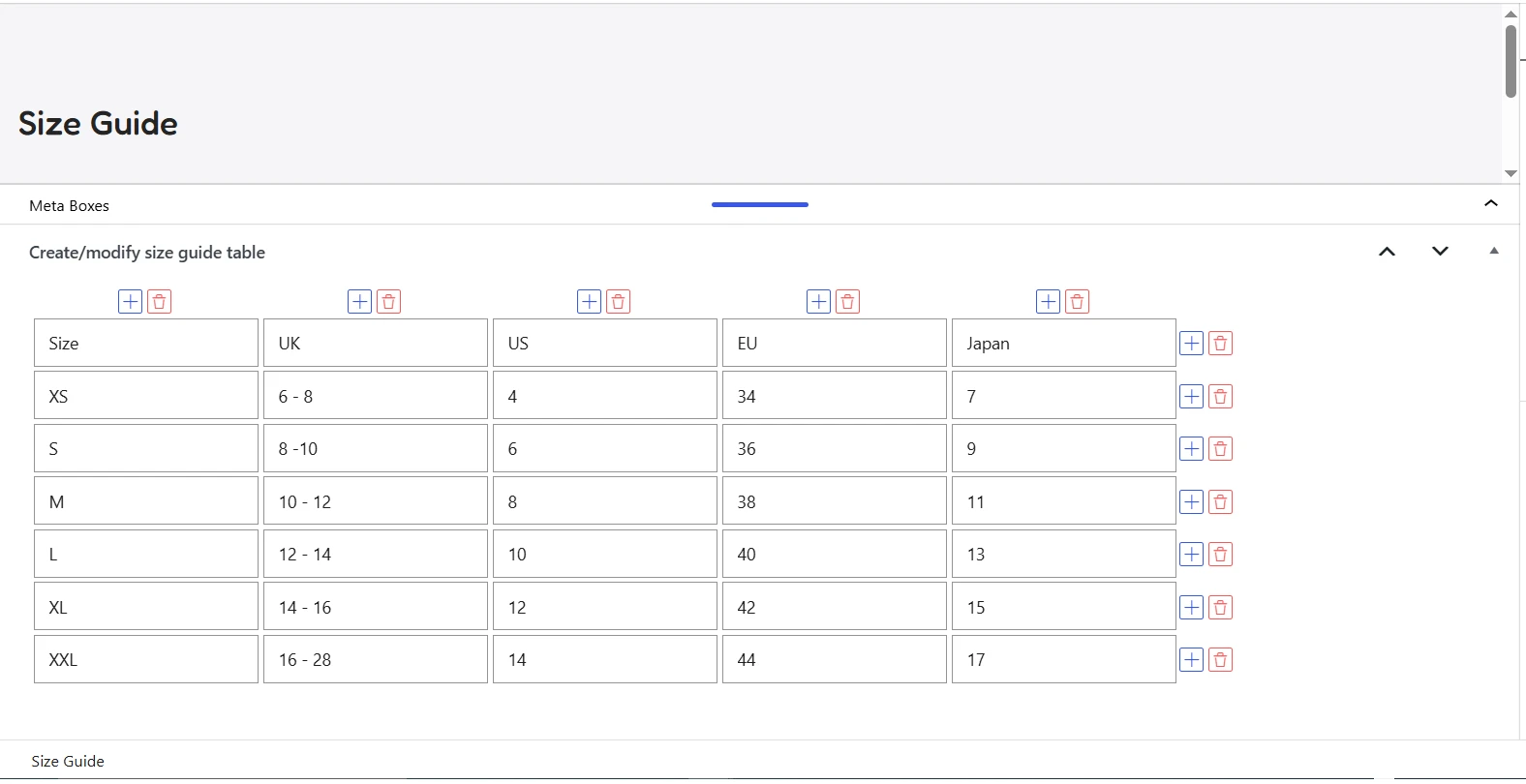
4. Assign the guide to product categories
Select the product categories that should use the guide, then publish it. Products in those categories inherit the guide automatically, so new products added later get it too.
5. Override or hide the guide on a single product
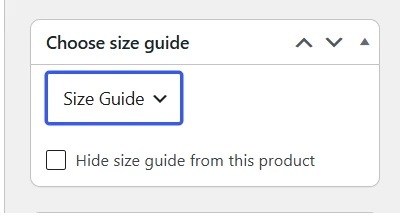
To use a different guide on one product, edit the product and select the guide in the Choose size guide panel. The product-level choice takes priority over the category guide.
If a product sits in a sized category but doesn’t need a guide (a scarf in a clothing category, for example), enable Hide size guide from this product. This removes the guide from that product, including one inherited from its category.
How the size guide appears on the product page
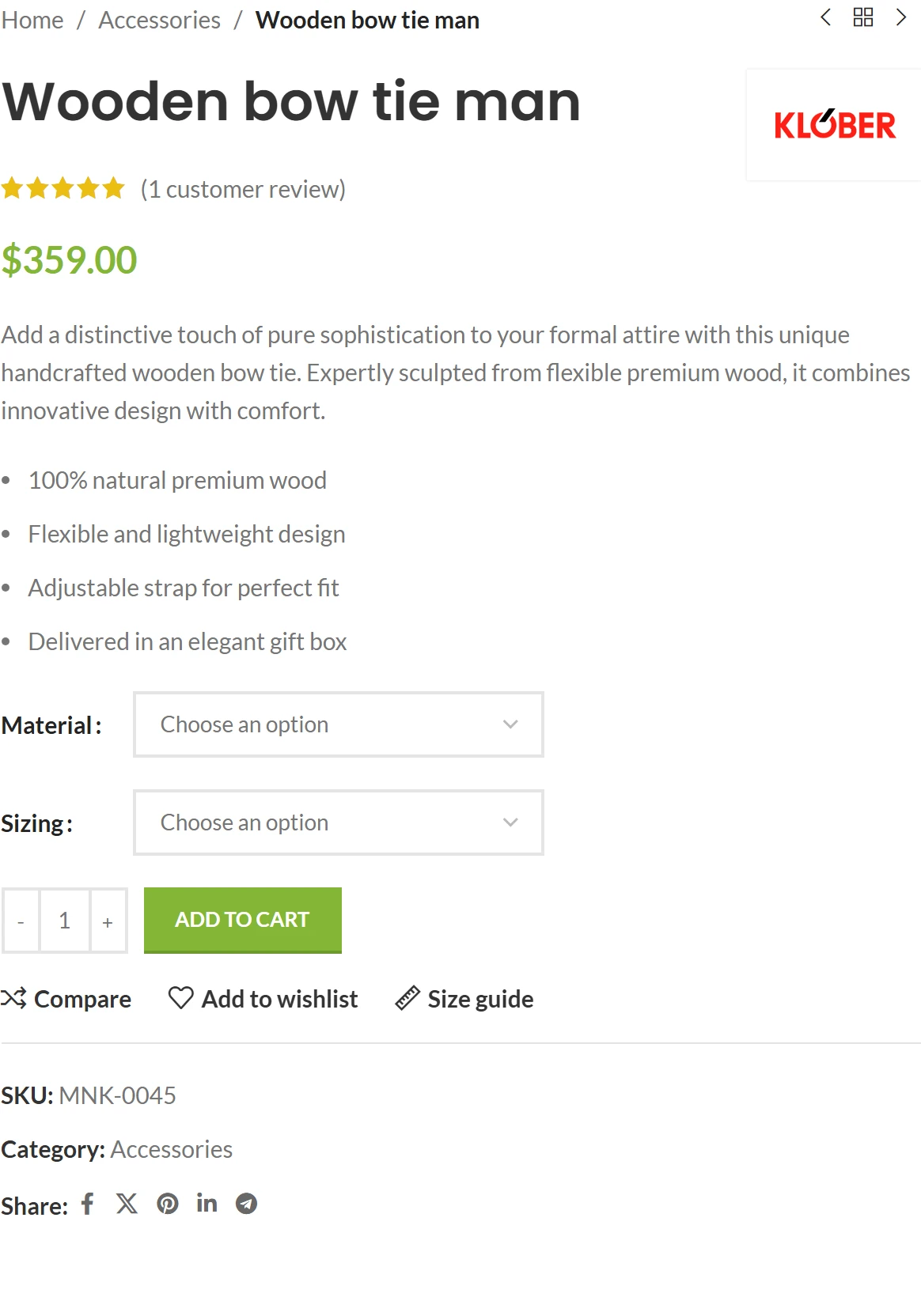
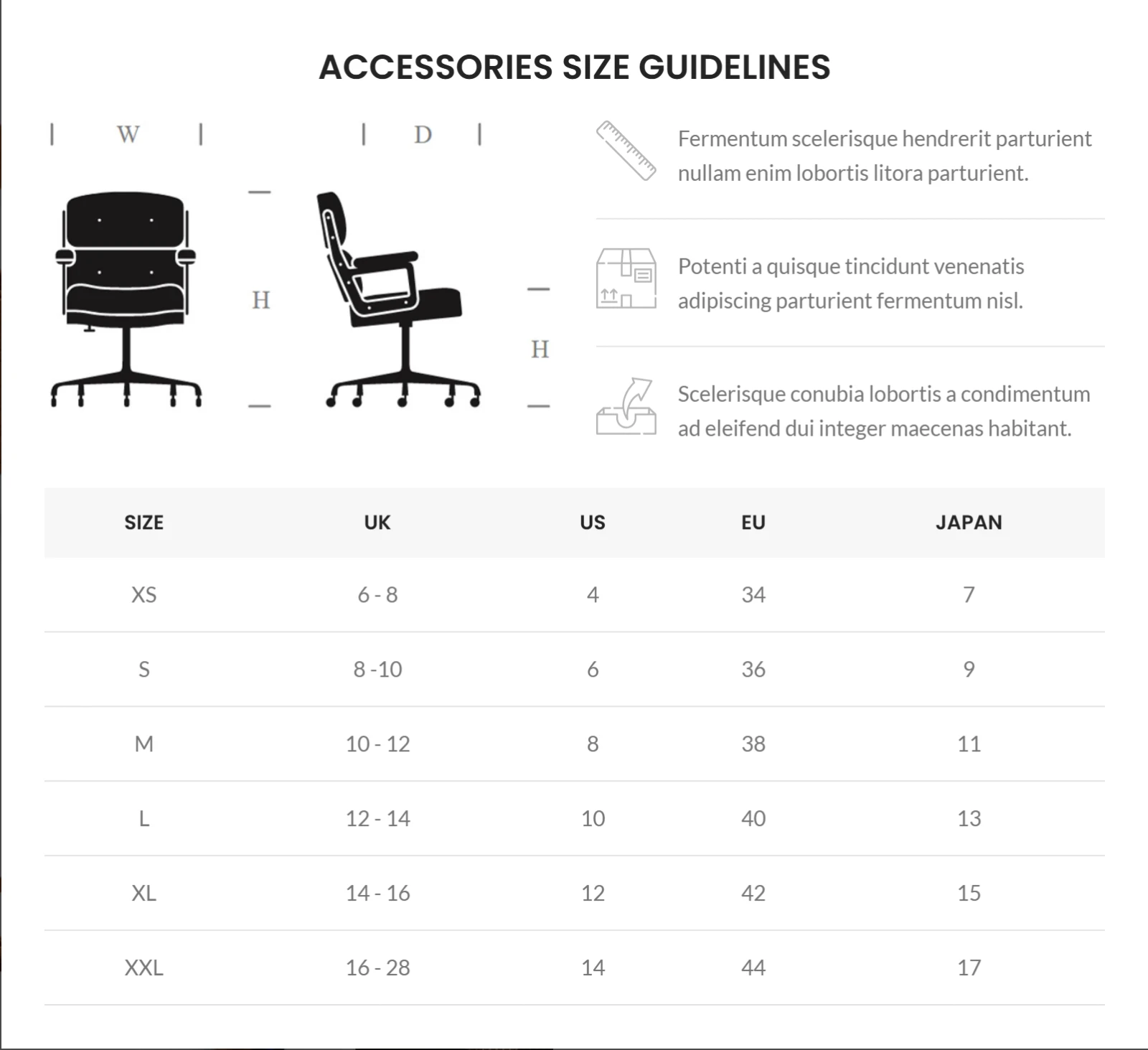
On the standard WooCommerce product page, WoodMart shows the size guide popup button automatically when a guide is assigned to the product. The customer opens the guide, checks the measurements, closes it, and picks a size, all without leaving the page.
The popup also keeps a long measurement table from taking up space on every product page.
Add the size guide button to a custom product layout
If you built a custom single product layout with WoodMart’s Layout Builder, add the Size guide button element to the layout yourself. It is available for Gutenberg, Elementor, and WPBakery. In Elementor, for example: Layouts → your Single product layout → Edit with Elementor, then place the Size guide widget near the size options and Add to cart button.
Show the full table on the page instead of a popup
If measurements are central to a product, you can display the whole guide inline using the Size guide content block (Gutenberg), widget (Elementor), or element (WPBakery). It has an Inherit current product option, so it shows whichever guide is assigned to the current product or its category.
Use size guides alongside size attributes
A size attribute defines what customers can select (S, M, L, XL) and powers variable products. A size guide explains what those options mean (M: chest 38-40 in, waist 32-34 in). Keep the size labels in your guide identical to your variation names so customers can match them instantly.
What to include in a size guide
Include only the measurements that help customers choose:
- Clothing: chest or bust, waist, hips, and, where relevant, sleeve length, inseam, or garment length.
- Shoes: foot length plus a US, UK, and EU size conversion, and width if you offer it.
- How to measure: one or two lines explaining where to measure, for example “measure around the fullest part of the chest”.
If you sell to several markets, show both inches and centimeters.
Size guide best practices
- Use real measurements. Take them from your manufacturer or product specs. A generic S/M/L chart can send customers to the wrong size.
- Keep the button close to the size selector. This matters most in custom layouts, where you control the button position.
- Test on a phone. Check that customers can find the button, open the guide, read the table without zooming, and close it easily.
- Create separate guides only when sizing differs. Reuse one category guide where measurements are the same, and use product-level guides for exceptions.
WooCommerce size guide FAQ
Does WooCommerce have a built-in size chart?
The default WooCommerce setup provides product attributes and variations for sizes, but it does not include a measurement chart feature out of the box. You can add one manually in product content, with a dedicated extension, or through a theme such as WoodMart.
Can I use different size guides for different products?
Yes. In WoodMart you assign guides to product categories and can select a different guide on any individual product. The product-level choice takes priority.
Can I add images to a WoodMart size guide?
Yes. Content added in the guide editor, including images, appears above the table in the popup. You can also hide the table and show only that content.
Should the size guide be a popup or shown on the page?
A popup keeps the product page compact and works for most stores. An inline table, using the Size guide content element, makes sense when customers need the measurements in front of them immediately.
Conclusion
A size guide answers the question customers ask most on sized products: “Which size do I need?” With WoodMart, you create guides once, assign them to categories, adjust them per product, and show them in a popup or inline, all from the theme. For stores with many sized products, that keeps sizing accurate and easy to maintain.
See the Size guides documentation for every option, or explore WoodMart to see its other built-in WooCommerce features.