How to add frequently bought together to WooCommerce
Set up WooCommerce Frequently Bought Together in WoodMart without a plugin: create bundles, add discounts, let shoppers pick extras and test the cart.
 Serg Sokhatskyi
7 min read
Serg Sokhatskyi
7 min read
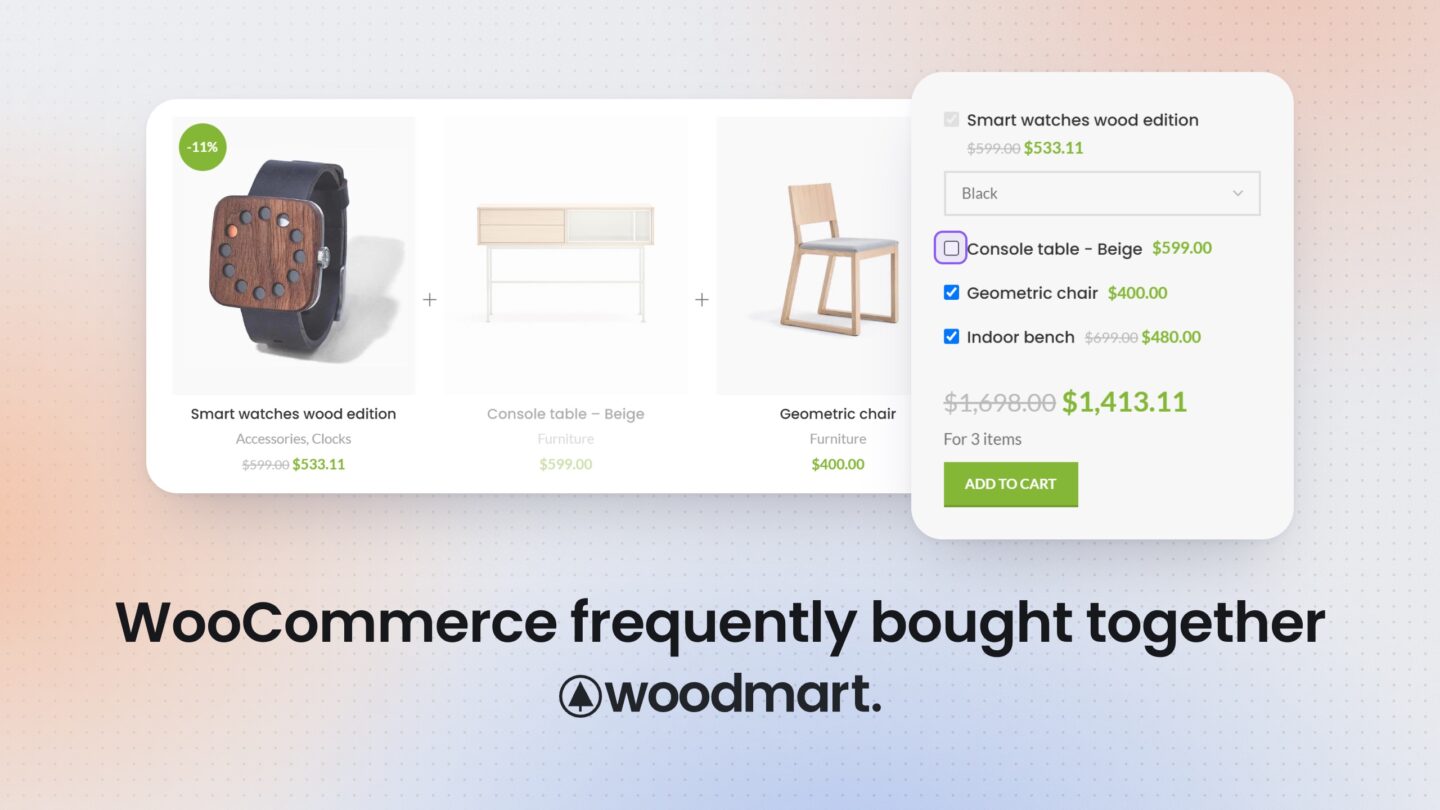
A customer buying a laptop will often need a sleeve and a mouse too. A Frequently Bought Together section puts those items on the product page, so shoppers can choose the extras they need and add everything to the cart together.
WooCommerce doesn’t include this form by default, but WoodMart has it built in. This guide shows how the feature works, how to set it up, and how to choose combinations that make sense for your customers.
Build bundles around compatibility, not categories
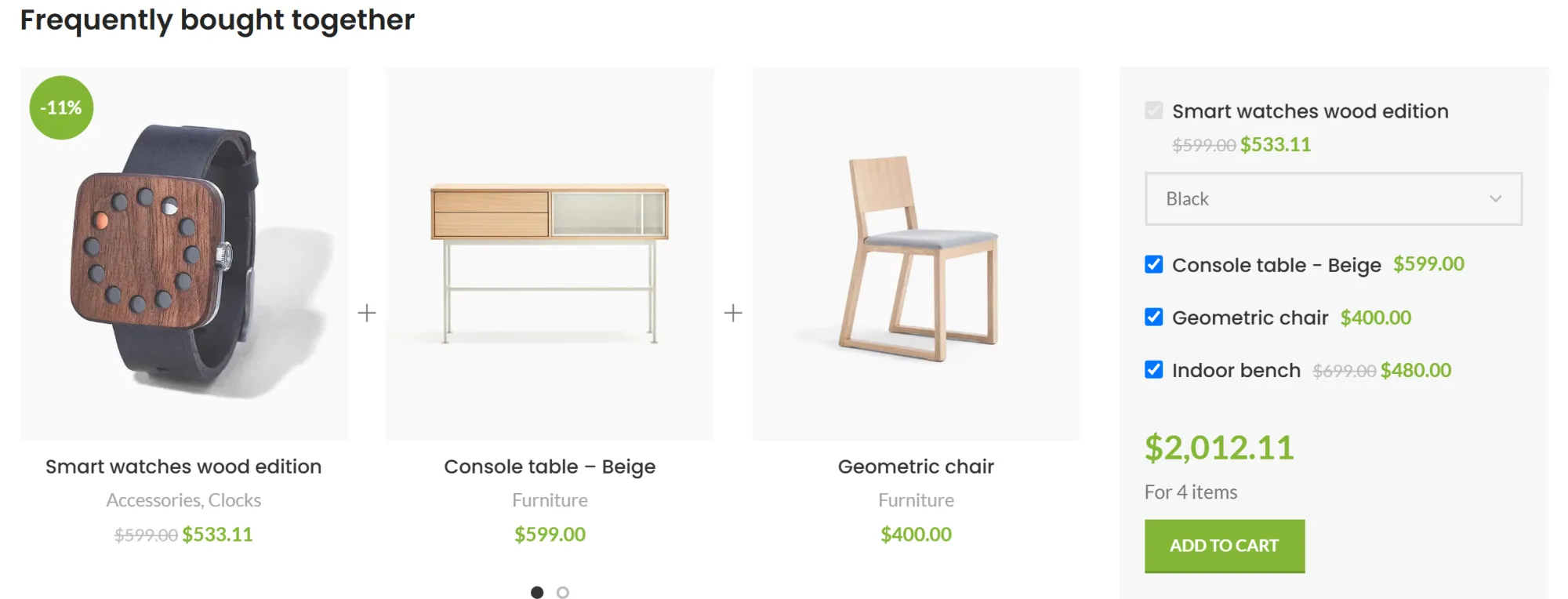
Frequently bought together products are complementary items recommended alongside a primary product: things customers use with it, such as a smartphone with a compatible case, screen protector, and charging cable.
The key to a useful bundle is compatibility. A shared category or similar product name doesn’t mean two items work together. Another laptop from the same category is a related product; a sleeve sized for the selected laptop is a complementary one.
That’s why WoodMart bundles are selected manually. Despite the feature’s name, recommendations are not calculated from order history: you decide which products appear with each primary product. Sales data can guide your choices, but you confirm that each item fits.
Done well, a bundle helps customers find accessories they might not think of, saves them from opening several product pages, and can increase average order value. Track average order value and sales of recommended items to see how it performs in your store.
Frequently Bought Together vs upsells, cross-sells, related products, and bundles
WooCommerce already includes upsells, cross-sells, and related products. Each recommendation type has a different job:
| Recommendation | Main purpose | Example | Typical placement |
|---|---|---|---|
| Upsell | Suggest a better or higher-priced alternative | Ergonomic chair instead of a standard one | Product page |
| Cross-sell | Suggest a complement to an item in the cart | Laptop bag | Cart page |
| Related products | Browse similar items (shared categories or tags) | Another laptop | Product page |
| Product bundle | Sell a predefined package as one set | Laptop, mouse, and bag set | Product page |
| Frequently bought together | Add selected complements around a main product | Coffee machine, reusable filter, coffee beans | Product page |
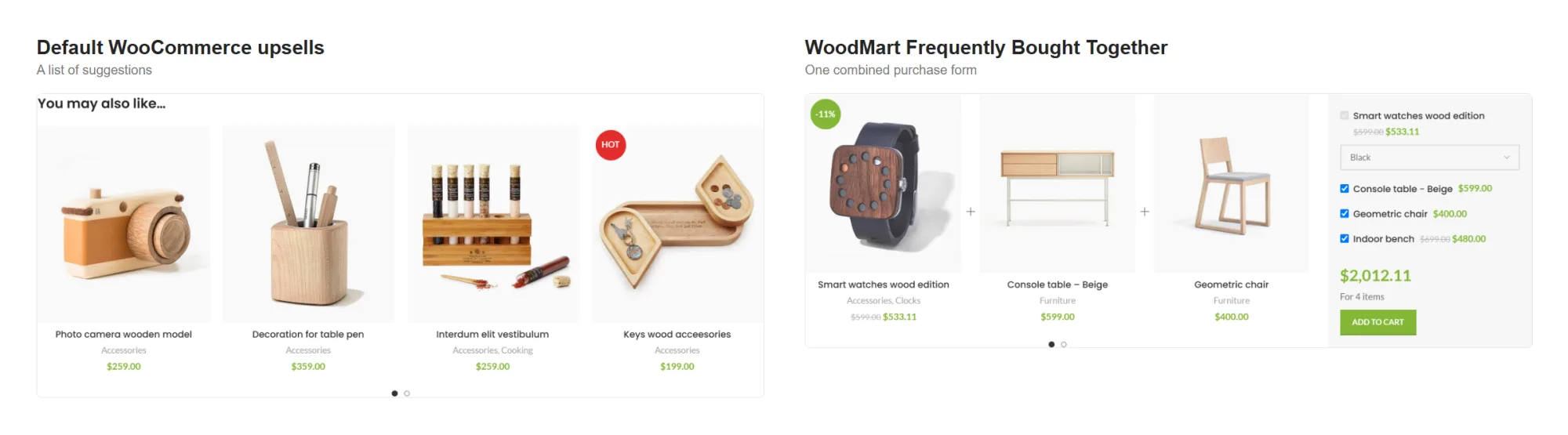
Upsells and cross-sells are assigned in Product data → Linked Products, and their exact placement depends on your theme. Frequently Bought Together differs in the buying experience: customers see the combination and a total and, when allowed, choose which extras to include.
Default WooCommerce vs WoodMart vs Frequently Bought Together plugins
WooCommerce core doesn’t include a dedicated Frequently Bought Together form. You can add one with an extension, custom development, or a theme that includes the feature, such as WoodMart. WooCommerce still runs your store; what WoodMart replaces is the separate FBT plugin.
| Capability | Default WooCommerce | WoodMart | Dedicated FBT / recommendation plugin |
|---|---|---|---|
| Product recommendations | Upsells, cross-sells, related products | Same, plus FBT bundles | Varies by plugin |
| Combined form with checkboxes and total | Not included | Built in | Core feature |
| Bundle-specific discounts | Not included (coupons are general) | Percentage discount per product | Usually available |
| Specific variations in a bundle | Not applicable | Supported | Varies by plugin |
| How items are chosen | Manual (upsells, cross-sells); automatic by category/tag (related) | Manual bundles | Some generate suggestions from order history |
| Placement control | Theme template | Automatic below tabs, or a builder element | Hooks or shortcodes, varies |
If upsells and cross-sells cover your needs, default WooCommerce is enough. WoodMart suits stores that want hand-picked bundles with optional discounts and customer selection, managed from the theme without another plugin. A dedicated plugin may still make sense if you need recommendations generated automatically from order data across a large catalog, or controls beyond WoodMart’s built-in options.
How to set up Frequently Bought Together in WoodMart
Make sure WooCommerce and WoodMart are installed, and that your main product and accessories are published with correct prices and stock. We’ll use a laptop as the main product, with a sleeve and a mouse as the recommended additions.
Step 1: enable Frequently Bought Together
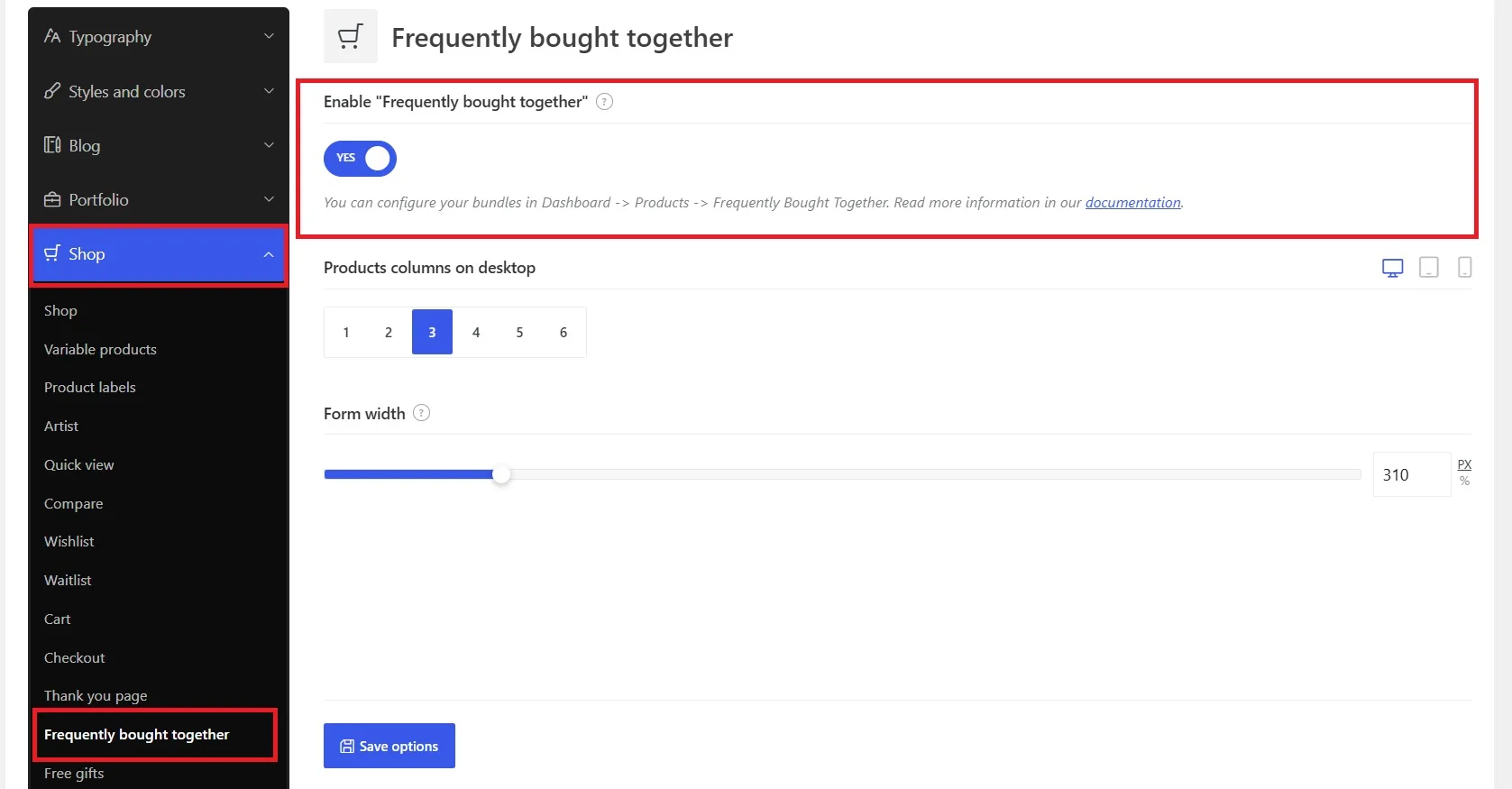
In your dashboard, open Theme Settings → Shop → Frequently bought together. Enable the feature and save.
Set the product columns for desktop, tablet, and mobile, and adjust the form width if needed. You can refine the layout after testing your first bundle.
Step 2: create a bundle
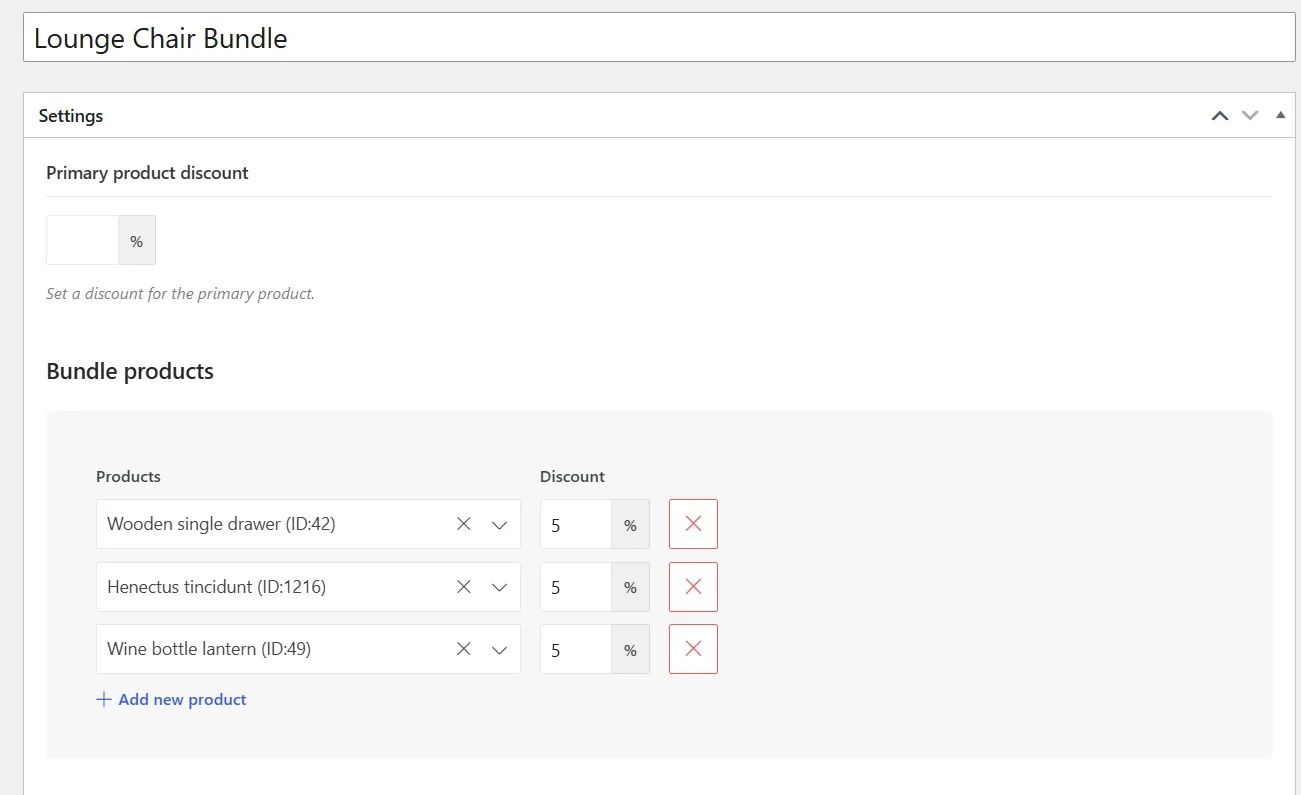
Go to Products → Frequently Bought Together → Add New. Give the bundle a descriptive title, such as “Laptop accessories”; it’s only shown in the dashboard.
Under Bundle products, add the sleeve and the mouse. You can also choose specific variations when the recommendation must be a particular size, color, or model.
Discounts are optional. Primary product discount applies a percentage reduction to the main product when bought in the bundle, and each additional product can have its own percentage. For example, you can discount the sleeve while leaving the laptop at its regular price.
Step 3: configure customer selection
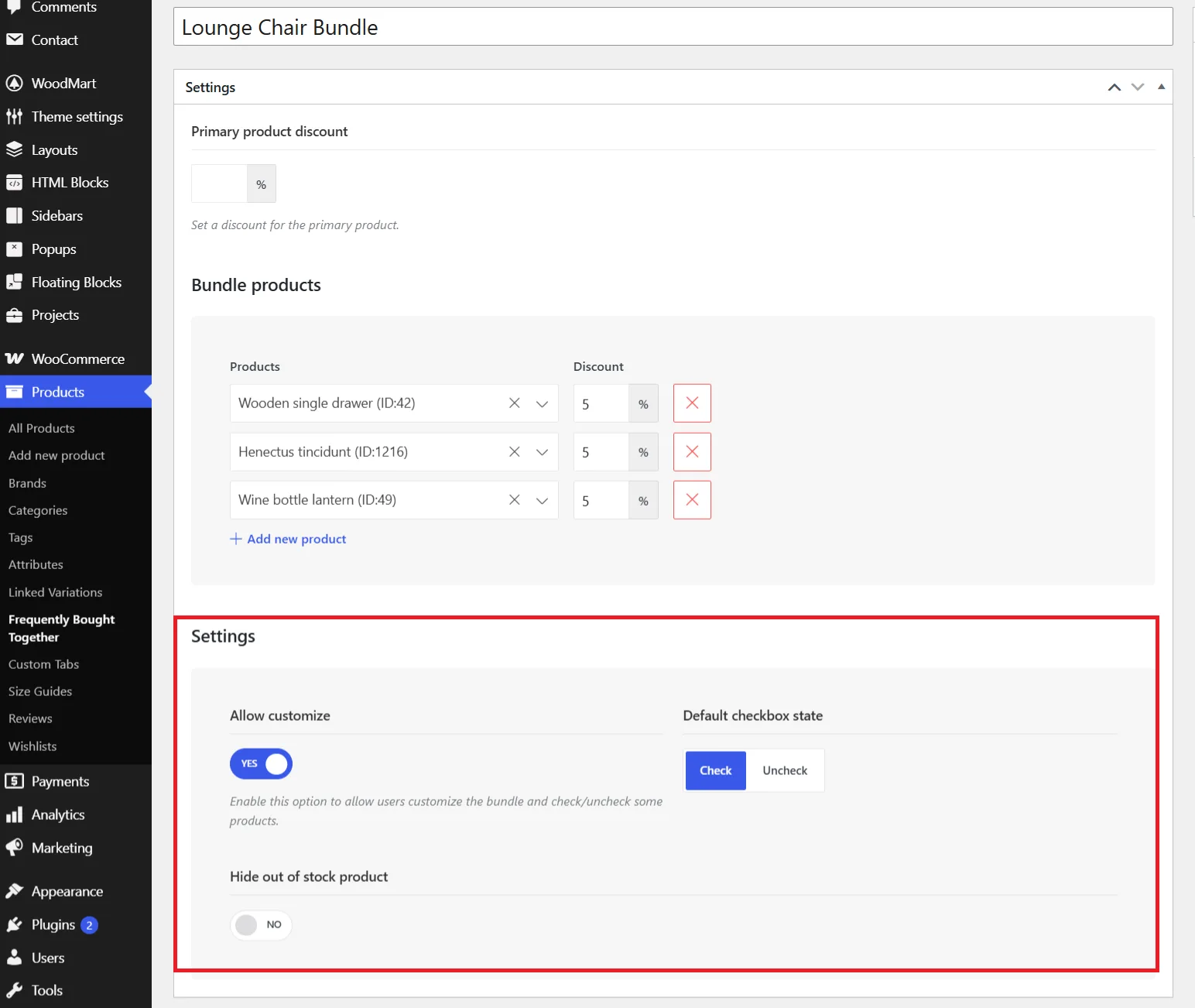
- Allow customize lets customers include or exclude the additional products. The primary product stays in the bundle.
- Default checkbox state controls whether additional items are selected when the page loads.
- Hide out of stock product removes unavailable items from customizable bundles.
Publish the bundle once the products, discounts, and selection options are ready.
Step 4: assign the bundle to a product
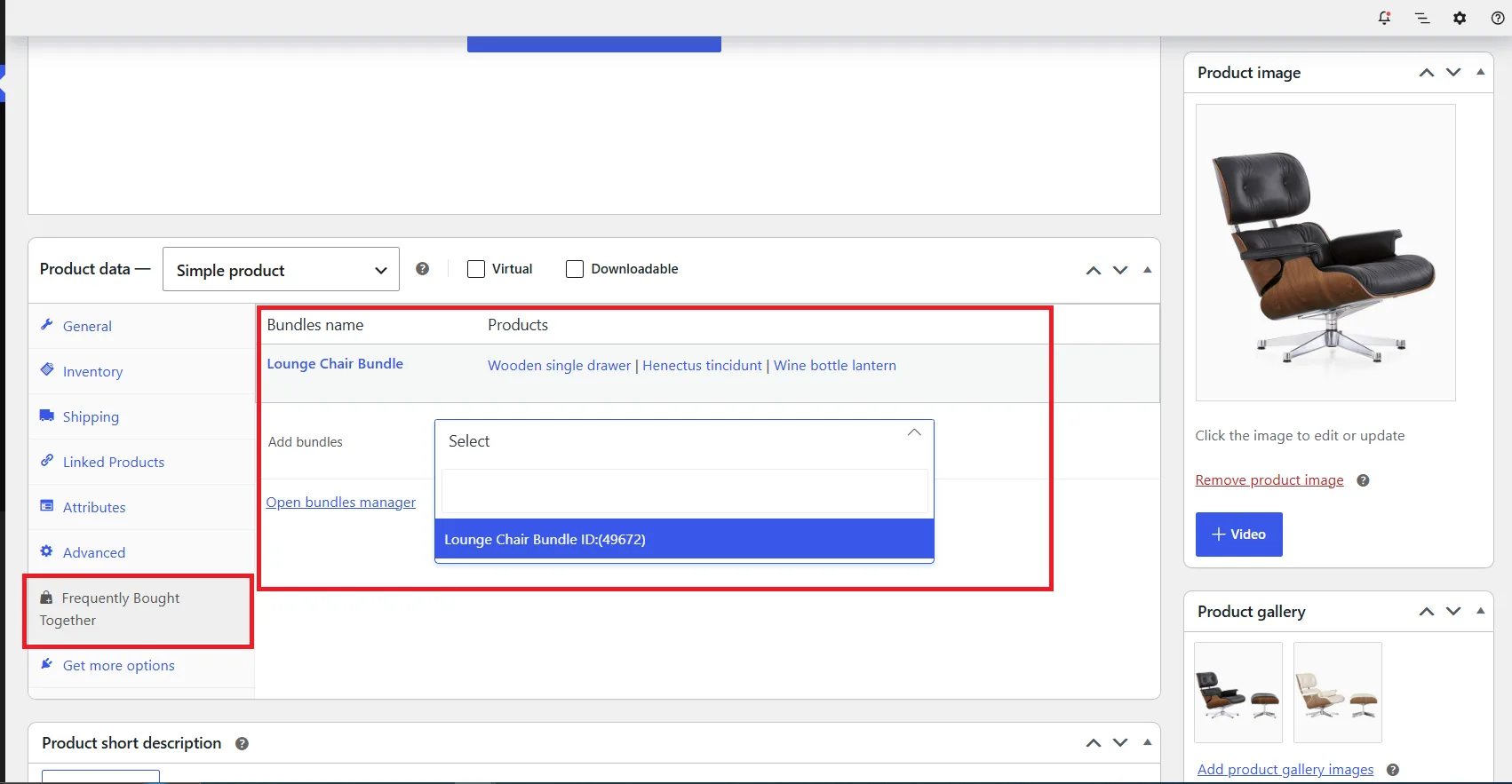
Edit the laptop and open Product data → Frequently Bought Together. Use Add bundles to select the published bundle, then update the product. You can assign more than one bundle to the same product.
If you reuse a bundle for other laptop models, check that every accessory fits each of them.
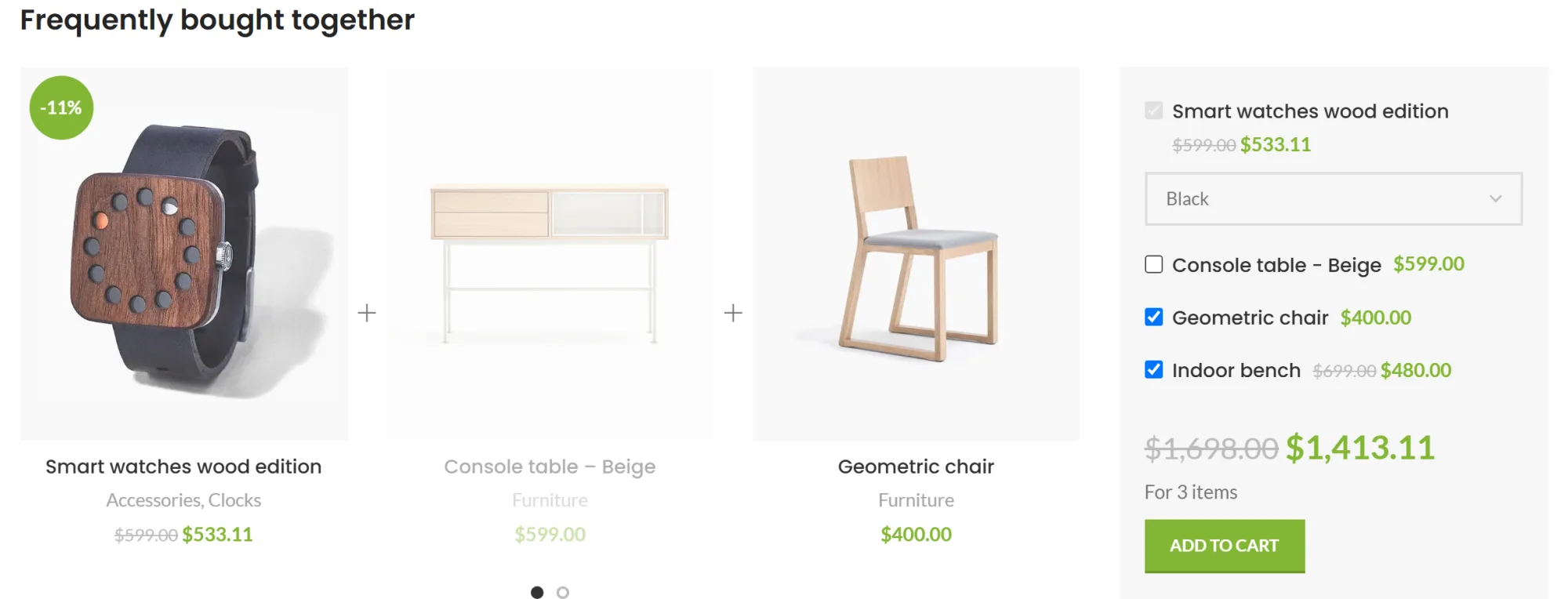
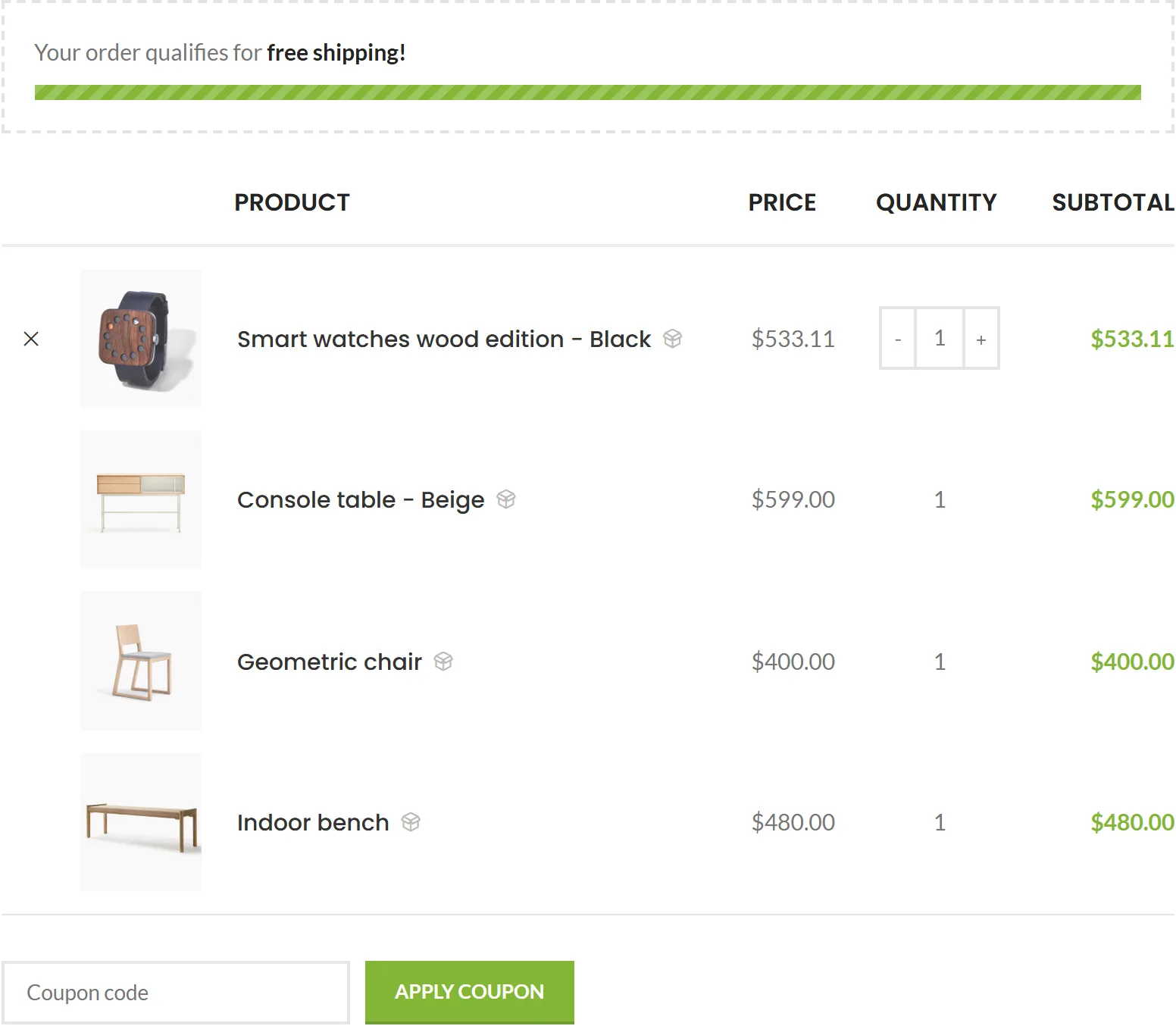
Step 5: test the product page and cart
Open the laptop’s product page. With customization enabled, select and deselect the accessories and check that the total updates. For variable products, choose a variation in the form as well.
Add the items to the cart and confirm the correct products, variations, and discounts appear.
Show Frequently Bought Together in a custom product layout
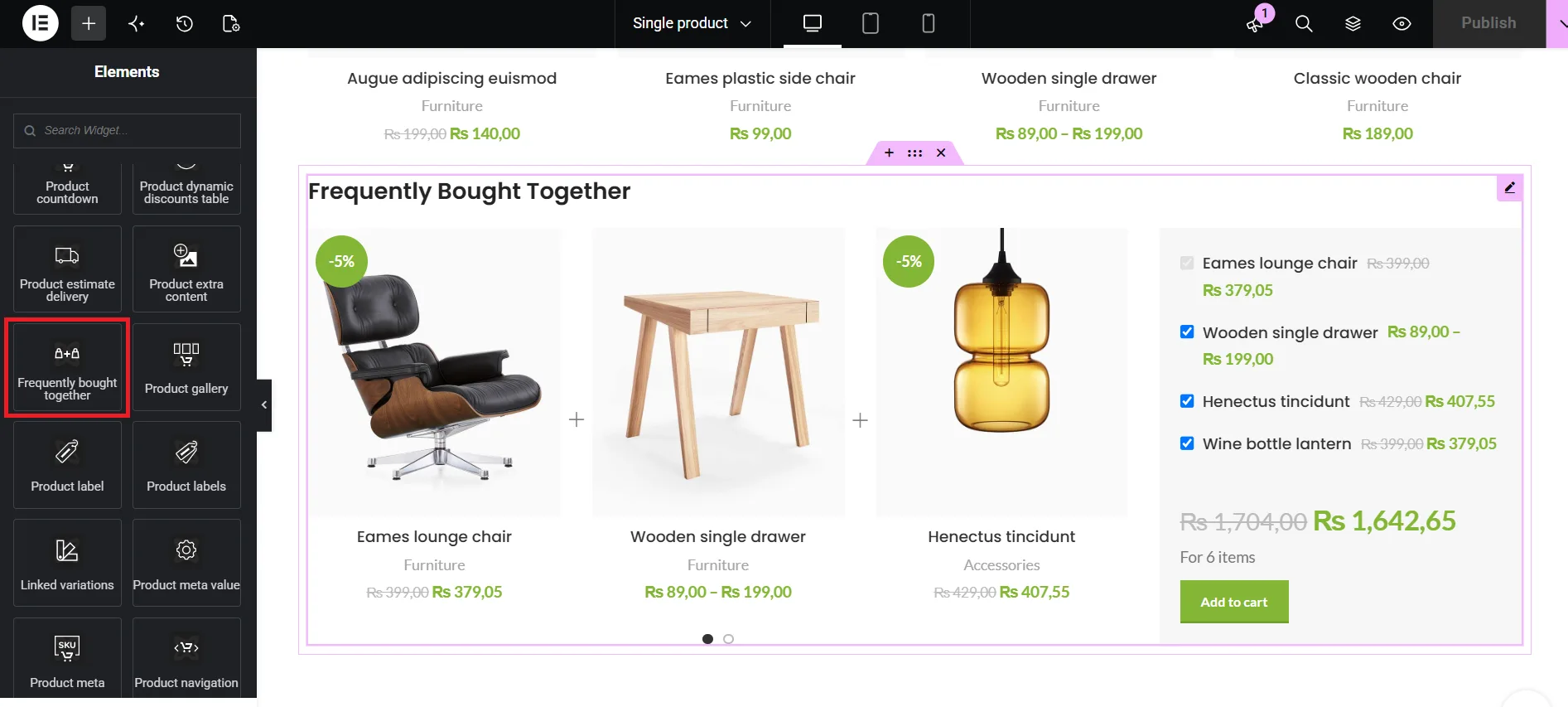
In WoodMart’s standard single product layout, the section appears automatically below the product tabs. If you use a custom Single Product layout, add the Frequently bought together element or block where you want it to appear.
The element is available for Gutenberg, Elementor, and WPBakery, with settings for the title, product columns, form width, carousel controls, and design. For simple products, placing it near the main product information can work well; for technical products, customers may need to read the specifications first. Check the position on mobile before deciding.
Choose products to recommend together
- Accessories used with the product: a camera with a suitable bag and memory card, or a console with a compatible controller. Check dimensions, models, and colors.
- Consumables and replacements: the exact ink, water filter, or blade the product uses, not a generic one.
- Items that complete the purchase: a desk with a desk mat and cable organizer.
Avoid adding unrelated products just because you want to promote them.
Best practices for Frequently Bought Together in WoodMart
Keep the selection small
Start with two or three additions. Remove items that duplicate each other or make customers check whether they fit.
Make discounts and the total clear
A modest discount can encourage the combination, but leave a sensible margin; a strong pairing may not need one. Make the total and any savings easy to see, and verify the cart price before launching.
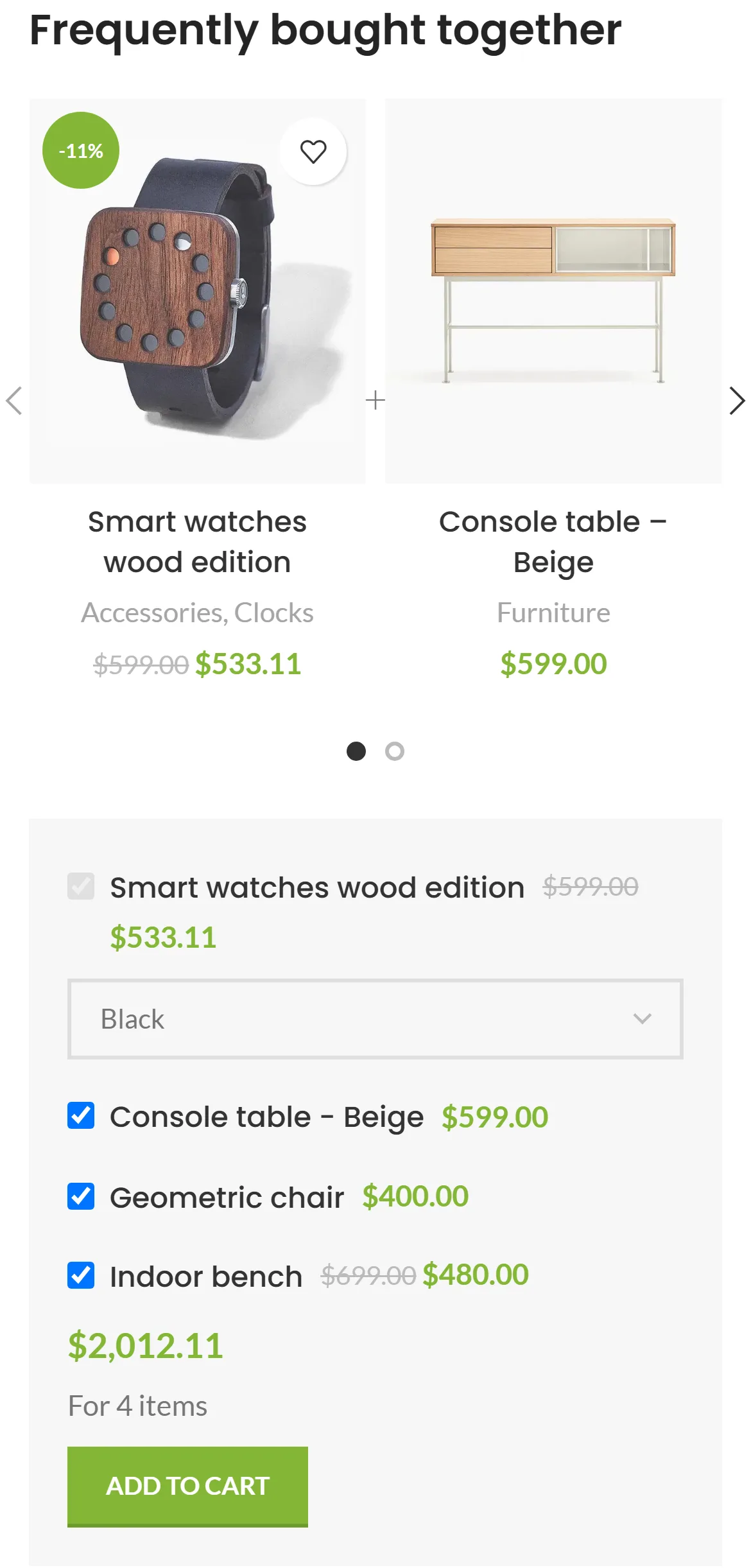
Test the form on mobile
Names and prices should stay readable, checkboxes easy to tap, and variation selectors uncramped. Use WoodMart’s mobile column setting to adjust the layout.
Review bundles regularly
Update bundles when accessories are replaced or discontinued. If shoppers rarely select an item, reconsider its relevance, price, or presentation before adding more.
Frequently asked questions
Does WoodMart generate recommendations automatically?
No. You create bundles manually and assign them to products, which lets you control compatibility. If you need suggestions generated from order data, a dedicated recommendation plugin may suit you better.
Can I assign more than one bundle to a product?
Yes. In Product data → Frequently Bought Together, you can add one or more published bundles to the same product.
Why is my Frequently Bought Together section not showing?
Check that the feature is enabled, the bundle is published, and it’s assigned to the product. If you use a custom Single Product layout, make sure it includes the Frequently bought together element. Clear any caches and check again.
Conclusion
A Frequently Bought Together section works best when every recommendation fits the product it’s shown with. WoodMart lets you build these bundles, add optional discounts, let customers choose their extras, and place the section in standard or custom layouts without a separate FBT plugin. Start with one best-selling product and two or three compatible accessories, test it on mobile and in the cart, then expand.
See the Frequently Bought Together documentation for every option, or explore WoodMart to see its other built-in WooCommerce features.

 Vladyslav Hryhorenko