
Configure the promo popup
The Promo popup displays promotional content, announcements, newsletter forms, or special offers in a modal window.
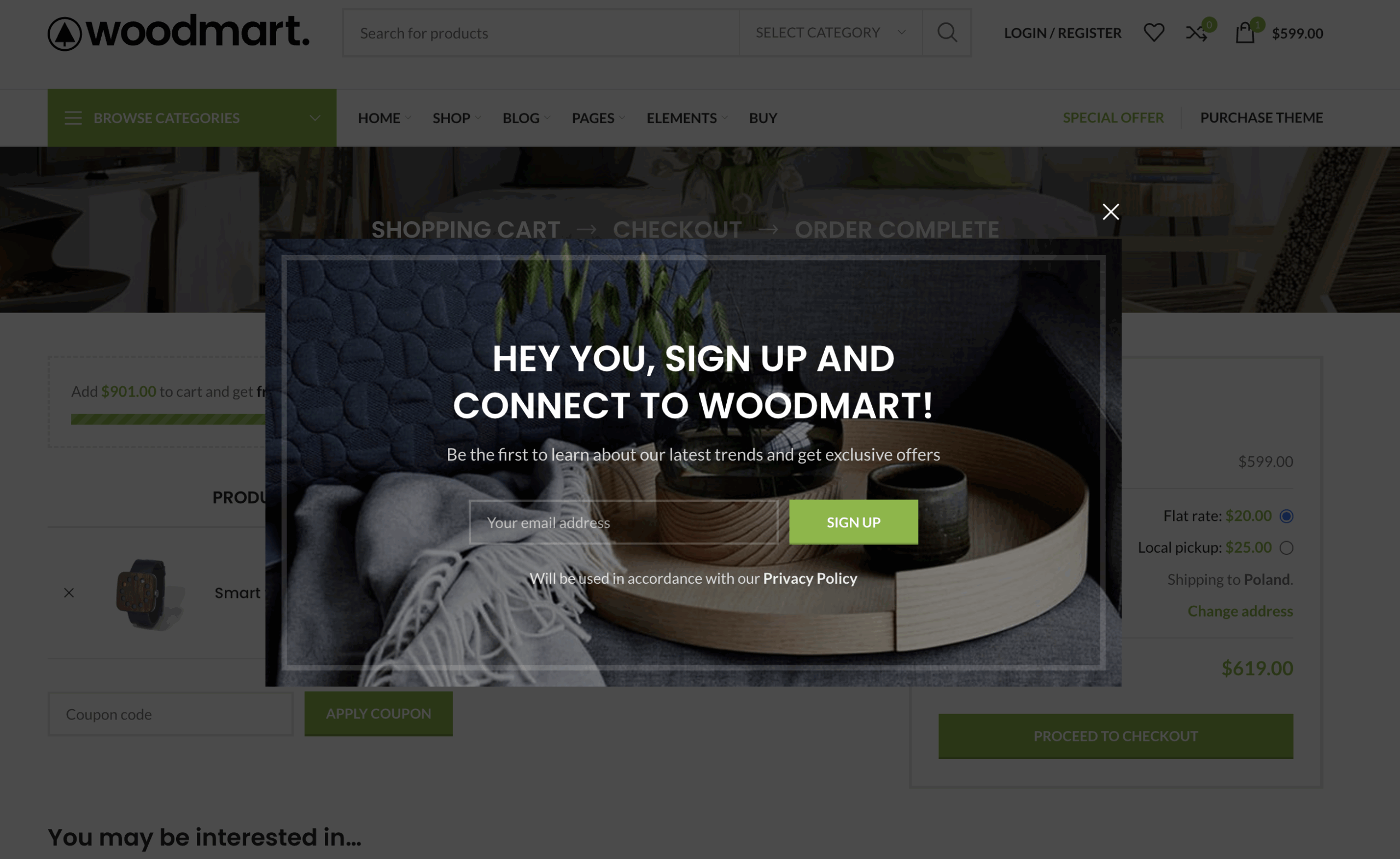
Enable the promo popup and add content
1. Navigate to Dashboard -> Theme Settings -> General -> Promo popup.
2. Enable Enable promo popup.
3. Select a content type in Promo popup content:
- Text: enter simple content in the built-in editor. The field supports formatting, links, images, and shortcodes.
- HTML Block: select a reusable layout created with your active page builder. This option provides more flexibility for images, forms, and custom layouts. Create HTML blocks through Dashboard -> HTML Blocks or use the Create new HTML Block link in the settings.
4. Configure the appearance and display settings, then click Save options.
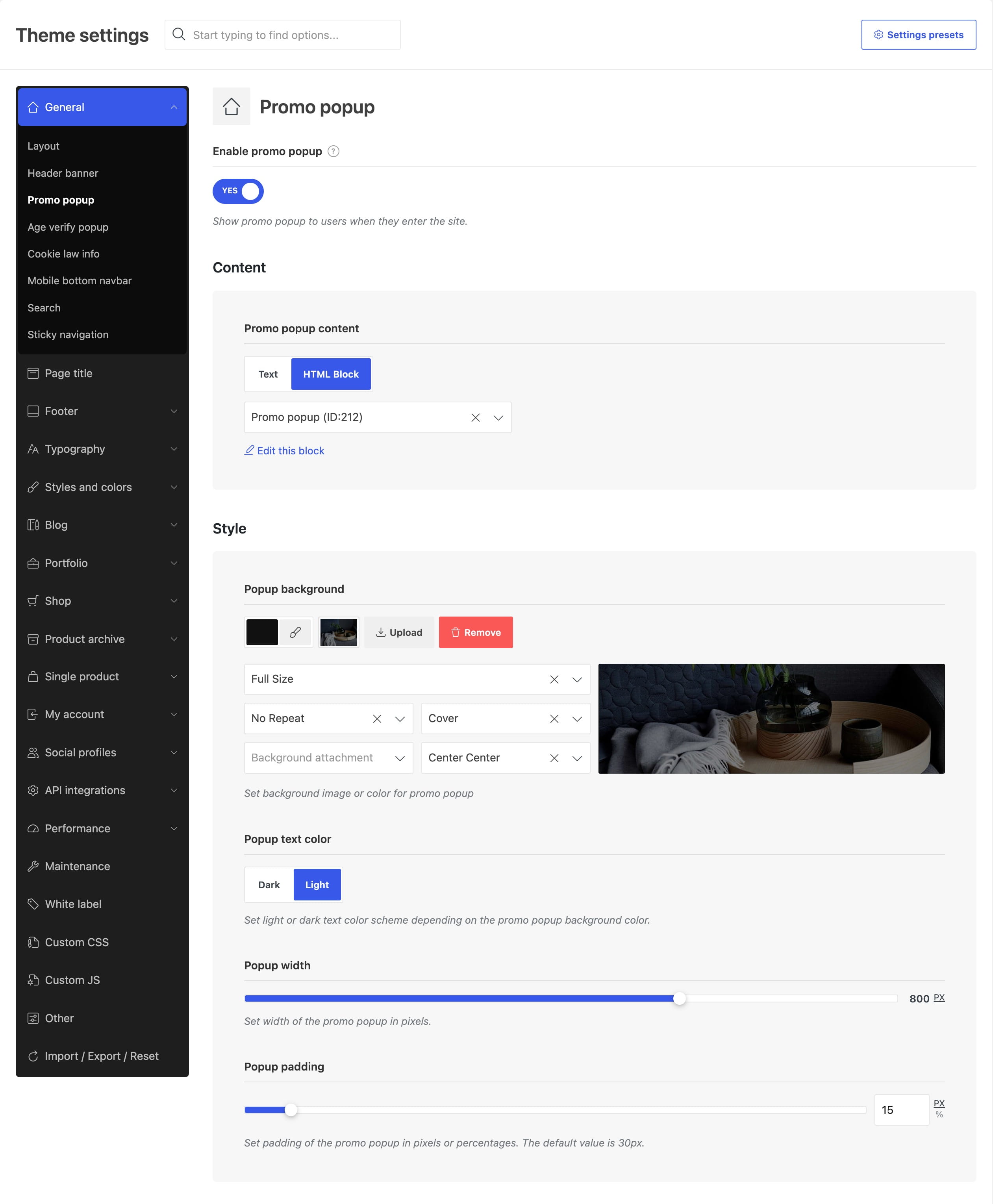
Configure the appearance
- Popup background: sets the popup background color or image, including its size, repeat, and position.
- Popup text color: selects a dark or light color scheme for the popup content. Choose the scheme that contrasts with the background.
- Popup width: sets the popup width from 400 to 1000 pixels.
- Popup padding: sets the internal spacing in pixels or percentages. Use
0if the selected HTML Block already includes the required spacing. - Hide on mobile devices: prevents the promo popup from appearing on mobile screens.
Choose when the popup appears
Use Show popup after to select the automatic display method:
- Some time: displays the popup after the delay entered in Popup delay. Enter the value in milliseconds; for example,
2000equals 2 seconds. - User scroll: displays the popup after the visitor scrolls the number of pixels specified in Show after user scroll down the page.
Show after number of pages visited adds a page-view threshold before the selected automatic trigger can display the popup. Set it to 0 to allow the popup on the first page. Higher values delay it until the visitor has viewed more pages.
Control repeated displays
After an automatic trigger displays the promo popup, its state is stored in a cookie. The cookie expires after 7 days by default, so the popup can appear automatically again after that period.
Increase Popup version after making significant changes to the popup. A new version uses a new stored state and allows the updated popup to appear for visitors who have already seen the previous version.
To open the promo popup manually, add the CSS class woodmart-open-newsletter to a clickable element. Manual opening is not limited by the automatic trigger state.