
Show single variation
Show single variation displays the variations of a WooCommerce variable product as individual product cards in the catalog and supported product grids. It does not create separate products: the cards remain variations of the same parent product and use their own variation data, such as image, price, stock status, and attributes.
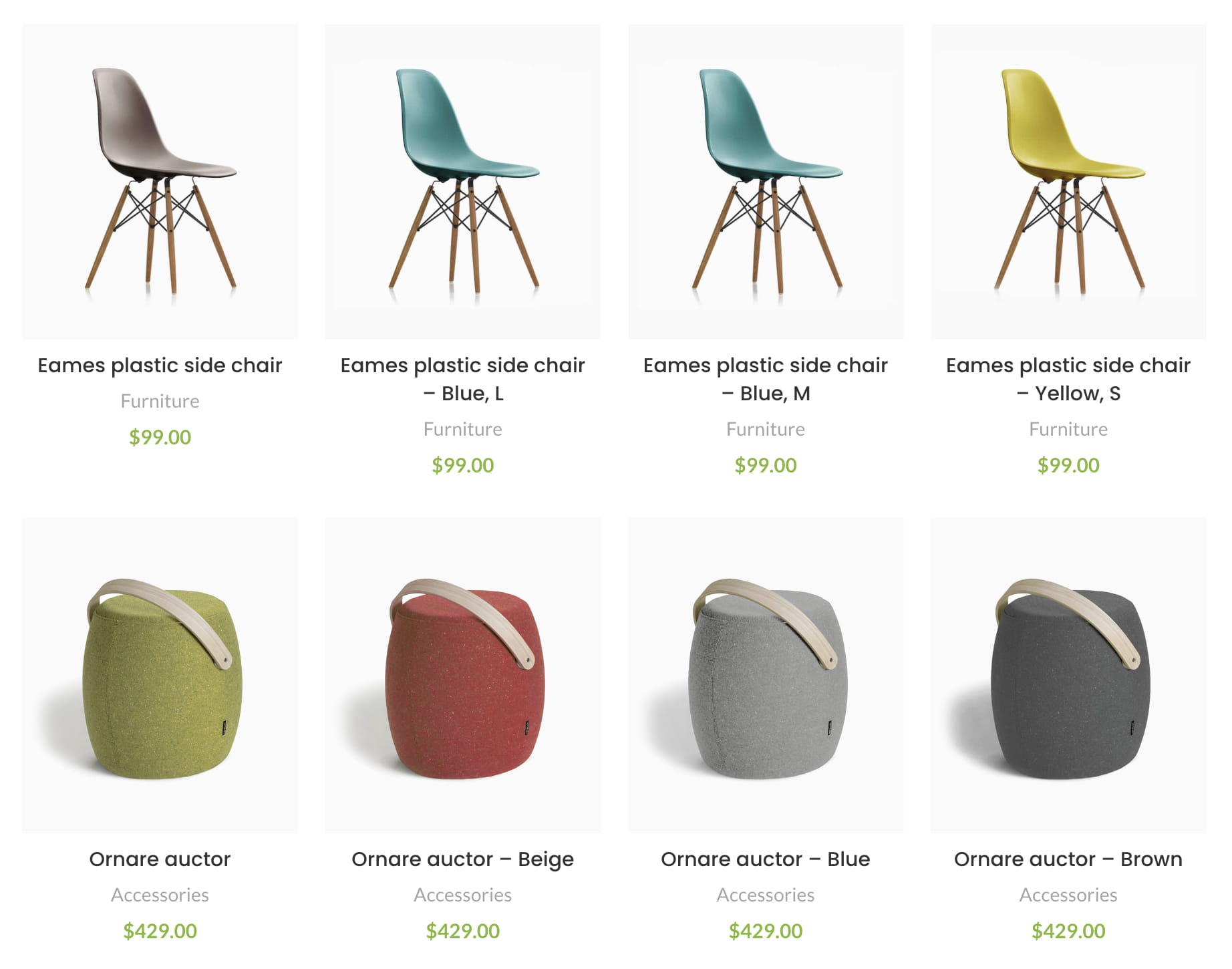
Enable single variations#
- Navigate to Dashboard -> Theme Settings -> Shop -> Variable products.
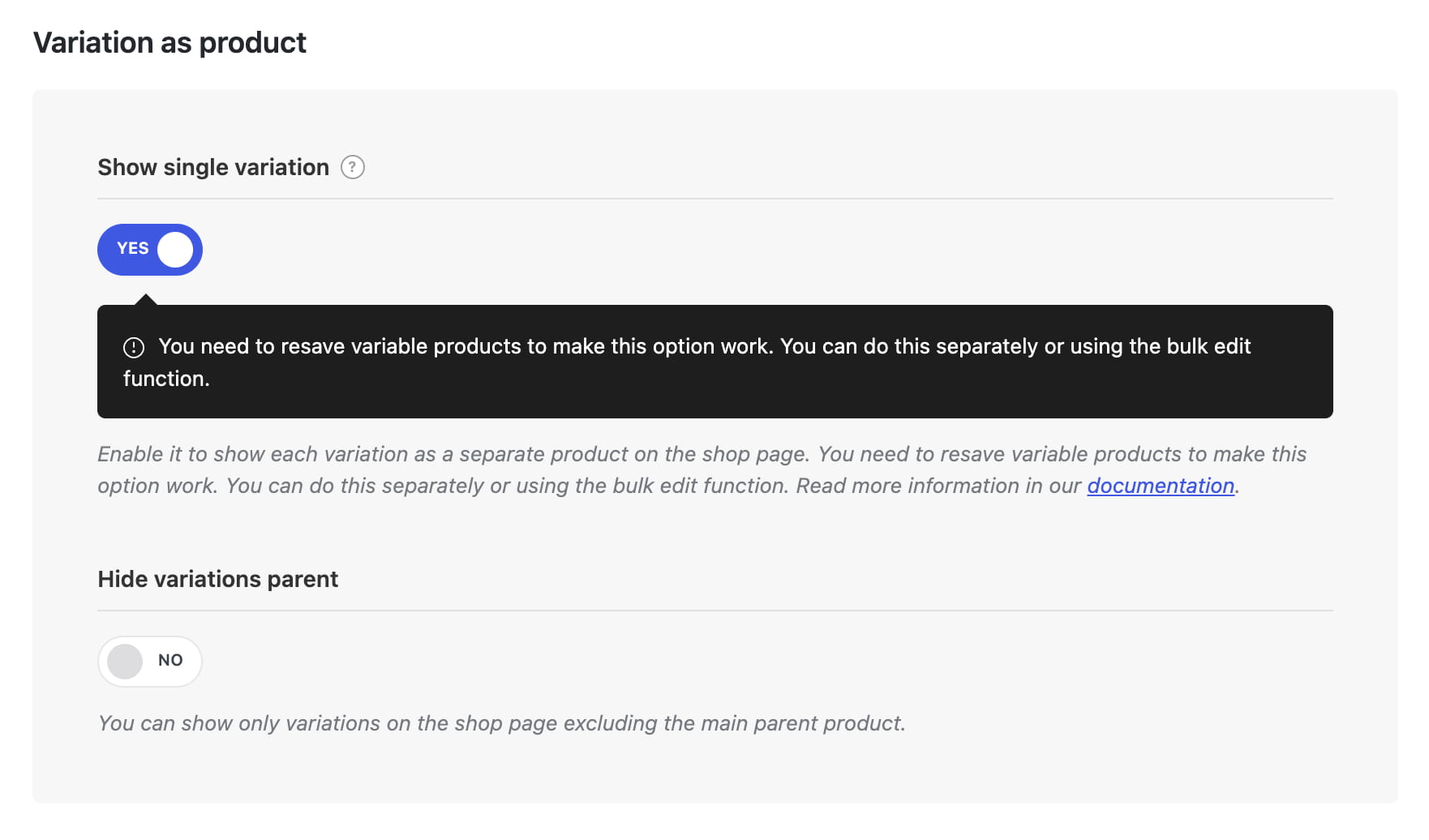
- Enable Show single variation.
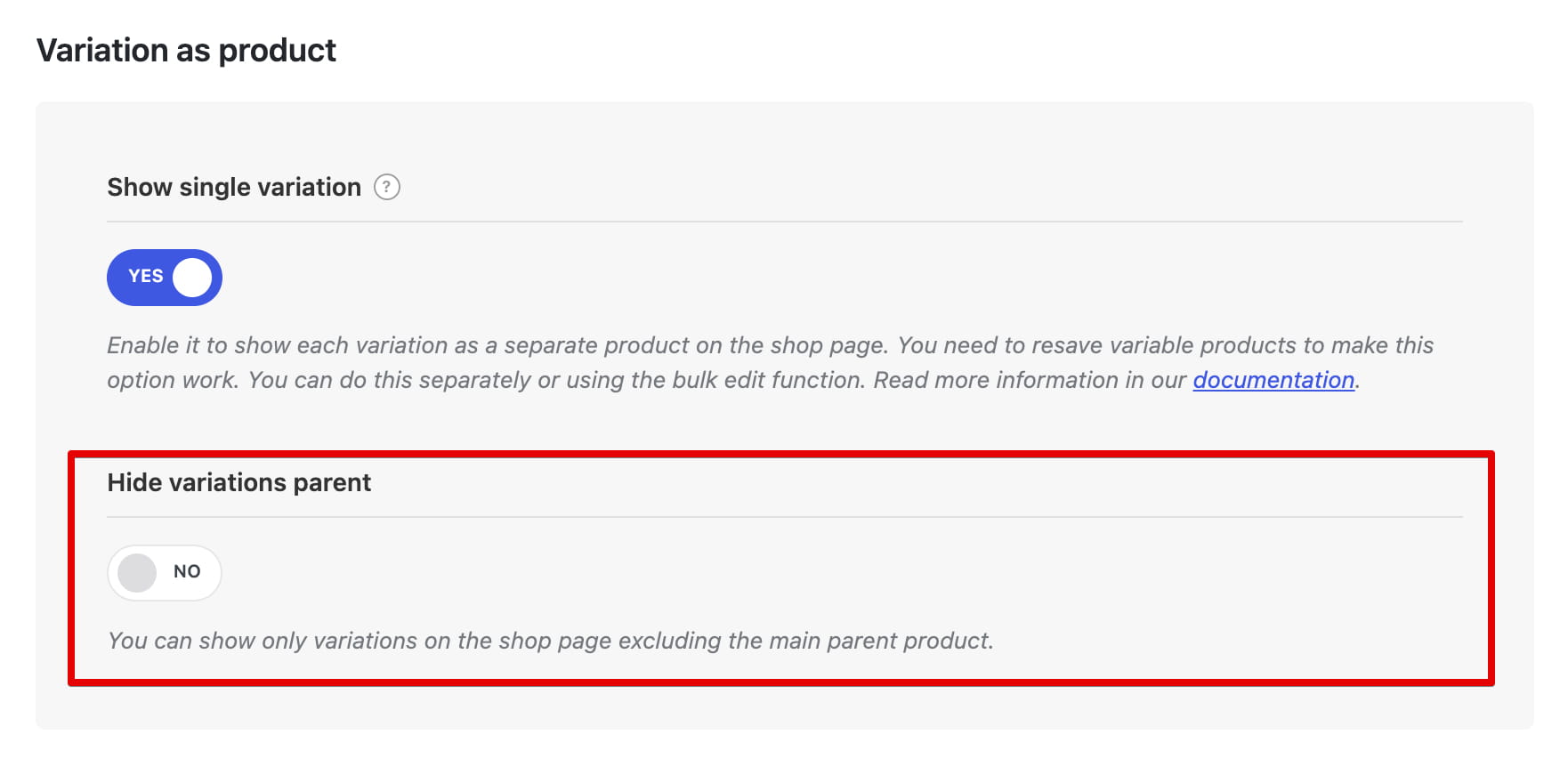
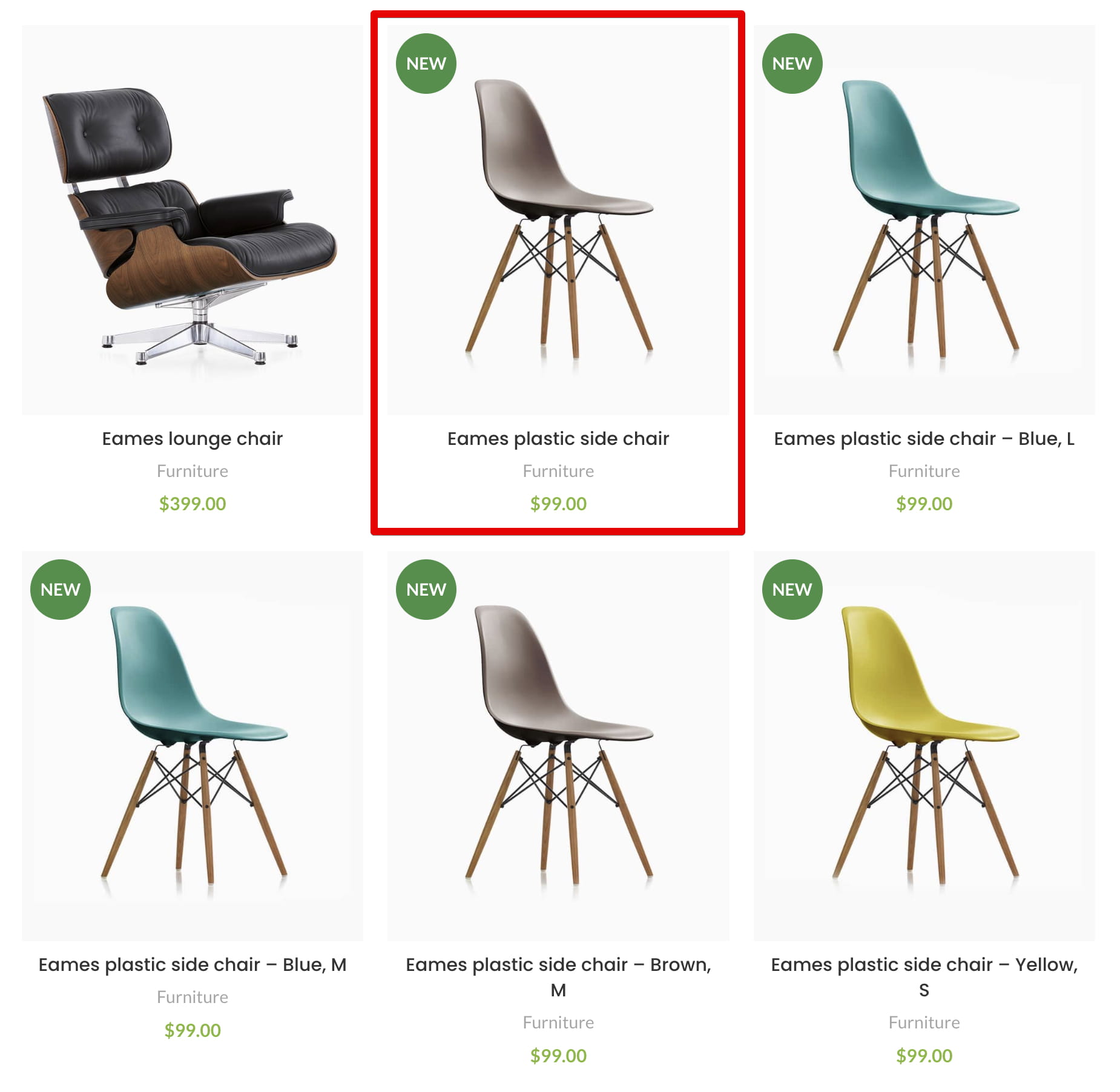
- Optionally enable Hide variations parent to show only the variation cards and exclude their parent variable products from product grids.
- Save the Theme Settings.
Warning
After enabling Show single variation, you must resave existing variable products so WoodMart can prepare their variations for product queries. Newly created or edited variable products are processed when they are saved.
Resave existing variable products#
You can update products individually or resave several existing variable products at once:
- Navigate to Dashboard -> Products.
- Select the variable products you want to resave.
- Select Edit from Bulk actions and click Apply.
- Click Update. You do not need to change any other fields.
Configure an individual variable product#
Hide all variations of one product from grids#
Edit the parent variable product, open Extra options from theme -> General, and enable Exclude variation products on grid. The parent product can still be displayed, but its variations will not appear as individual cards.
Configure a specific variation#
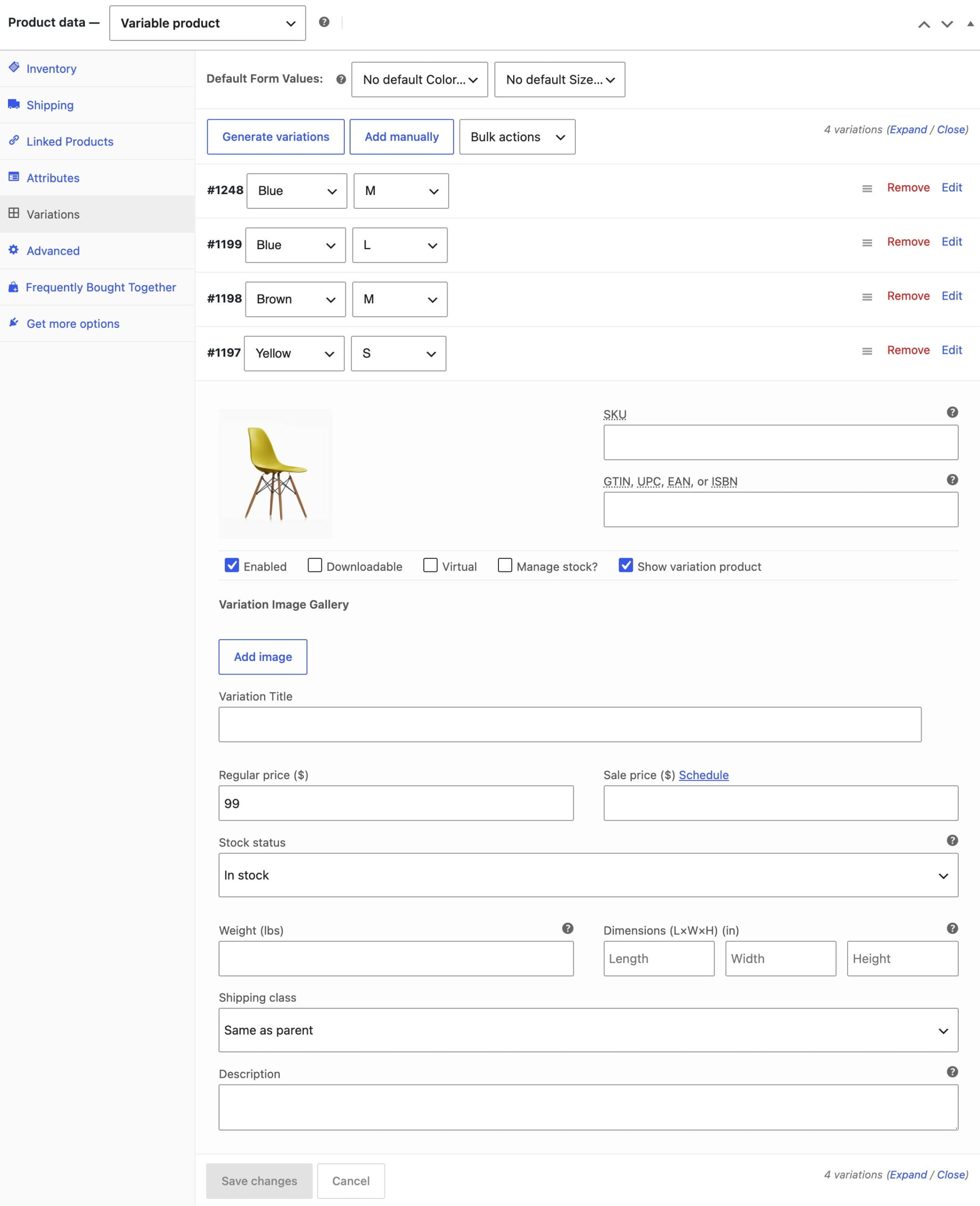
Edit the variable product, open Product data -> Variations, and expand the required variation. WoodMart adds two controls:
- Show variation product — enable or disable the individual variation card.
- Variation Title — enter a custom title for that variation card. If the field is empty, WooCommerce generates the title from the parent product and variation attributes.
Click Save changes in the Variations section, then update the product.
Show single variation vs Linked variations#
Show single variation works with variations that belong to one WooCommerce variable product. If each option needs to remain a separate simple product with its own product page, use Linked variations instead.
Was this article helpful?
Still stuck? Ask on the support forum