Price tracker
Price tracker lets customers subscribe to product price-drop notifications. Customers can track any price reduction or specify a desired price, while store managers can review active subscriptions and configure the related WooCommerce emails.
Enable Price tracker
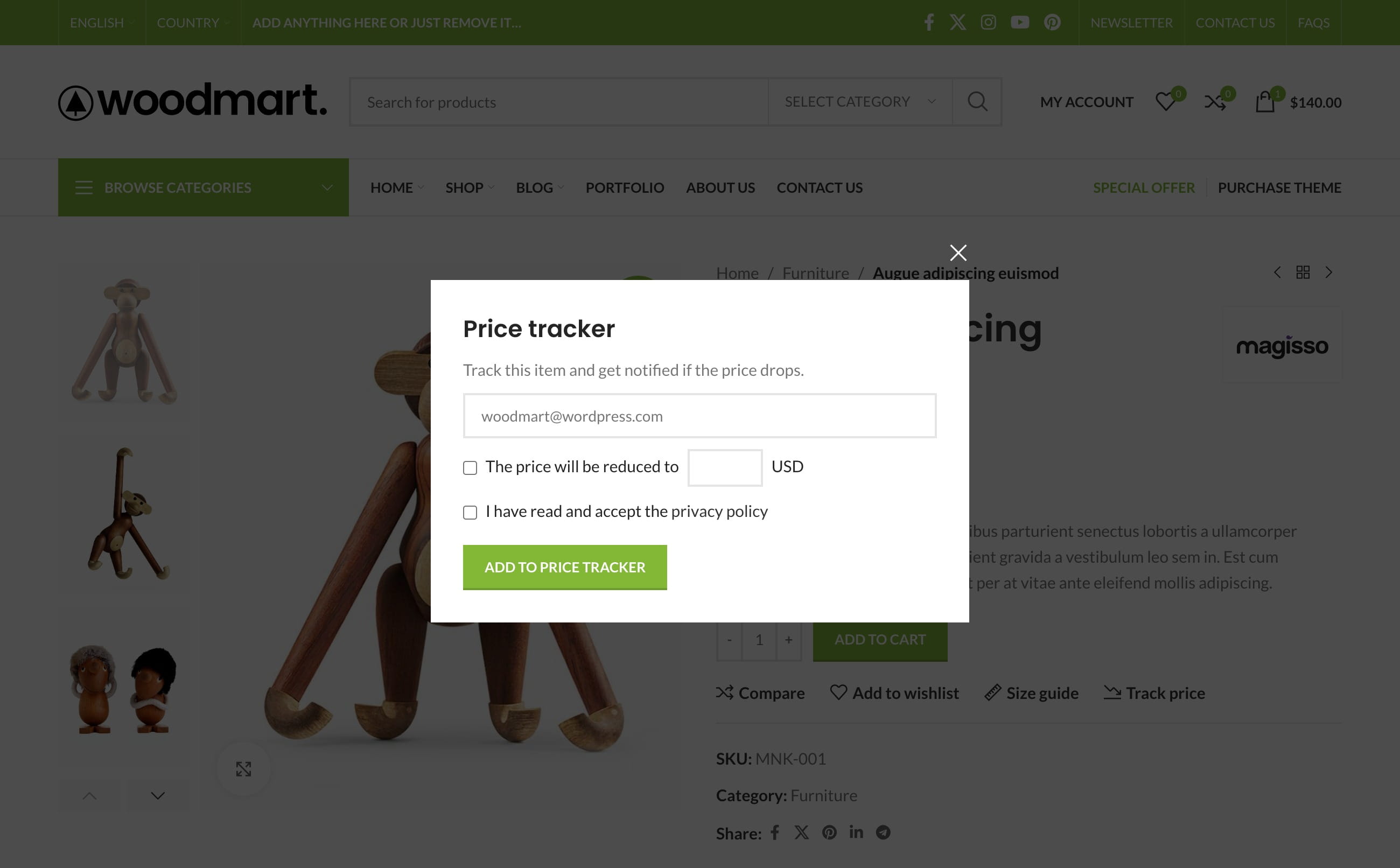
Navigate to Dashboard -> Theme Settings -> Shop -> Price tracker, enable Enable “Price tracker”, and save the Theme Settings.
Additional settings
- Login to see price tracker — makes the feature available only to registered customers.
- Skip email input for logged-in users — uses the email address saved in the customer account.
- Enable desired price — lets customers choose the price at which they want to be notified.
- Enable privacy policy checkbox — requires customers to accept the website privacy policy before subscribing.
- Enable fragments updating — updates the tracking form dynamically when full-page caching is used.
Add a product to Price tracker
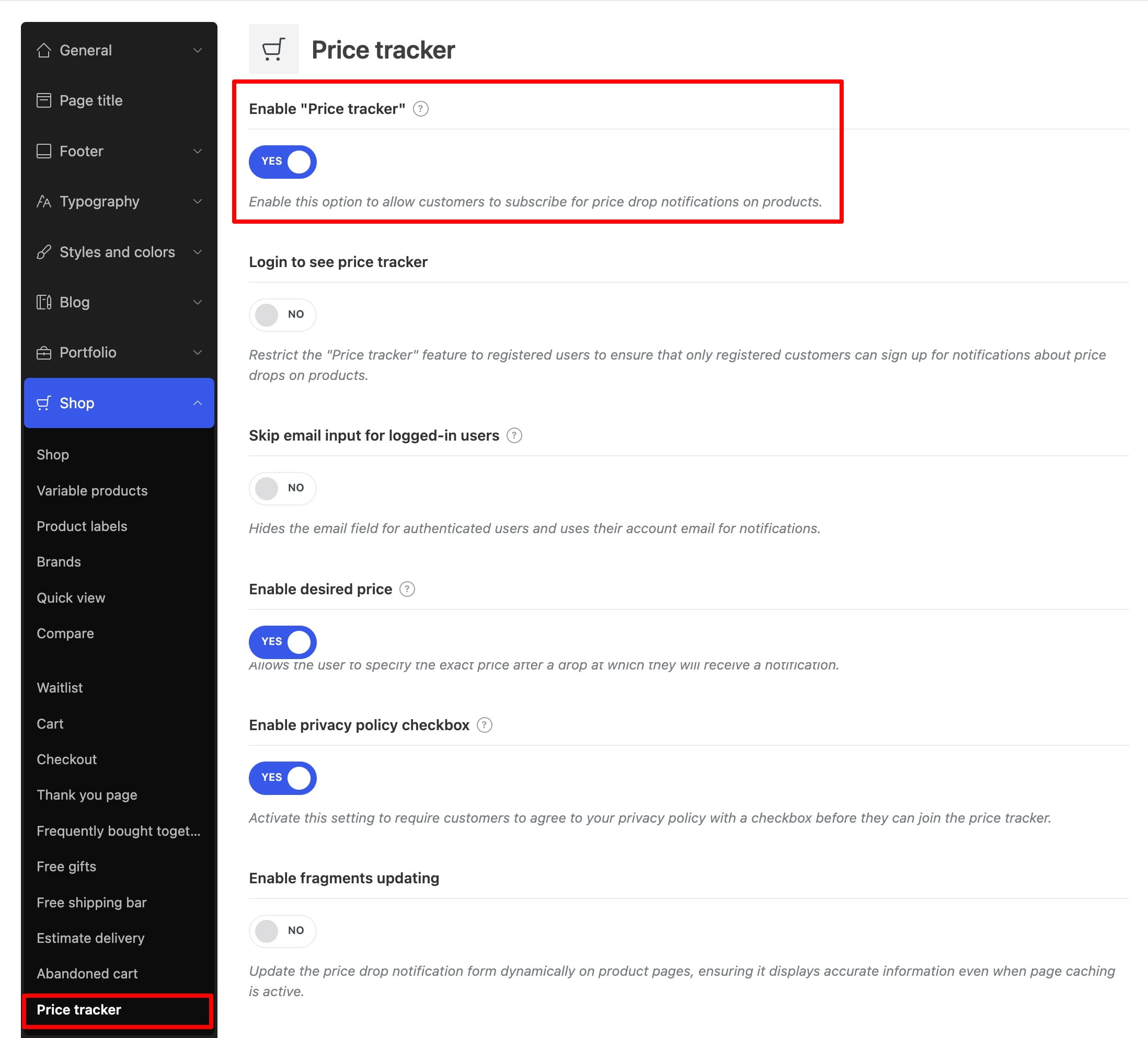
With the standard single product layout, WoodMart displays the Track price button automatically. When a custom Product Layout is used, add the Price tracker button element to the layout.
The button is available for supported in-stock products. For a variable product, the customer selects a variation before tracking its price.
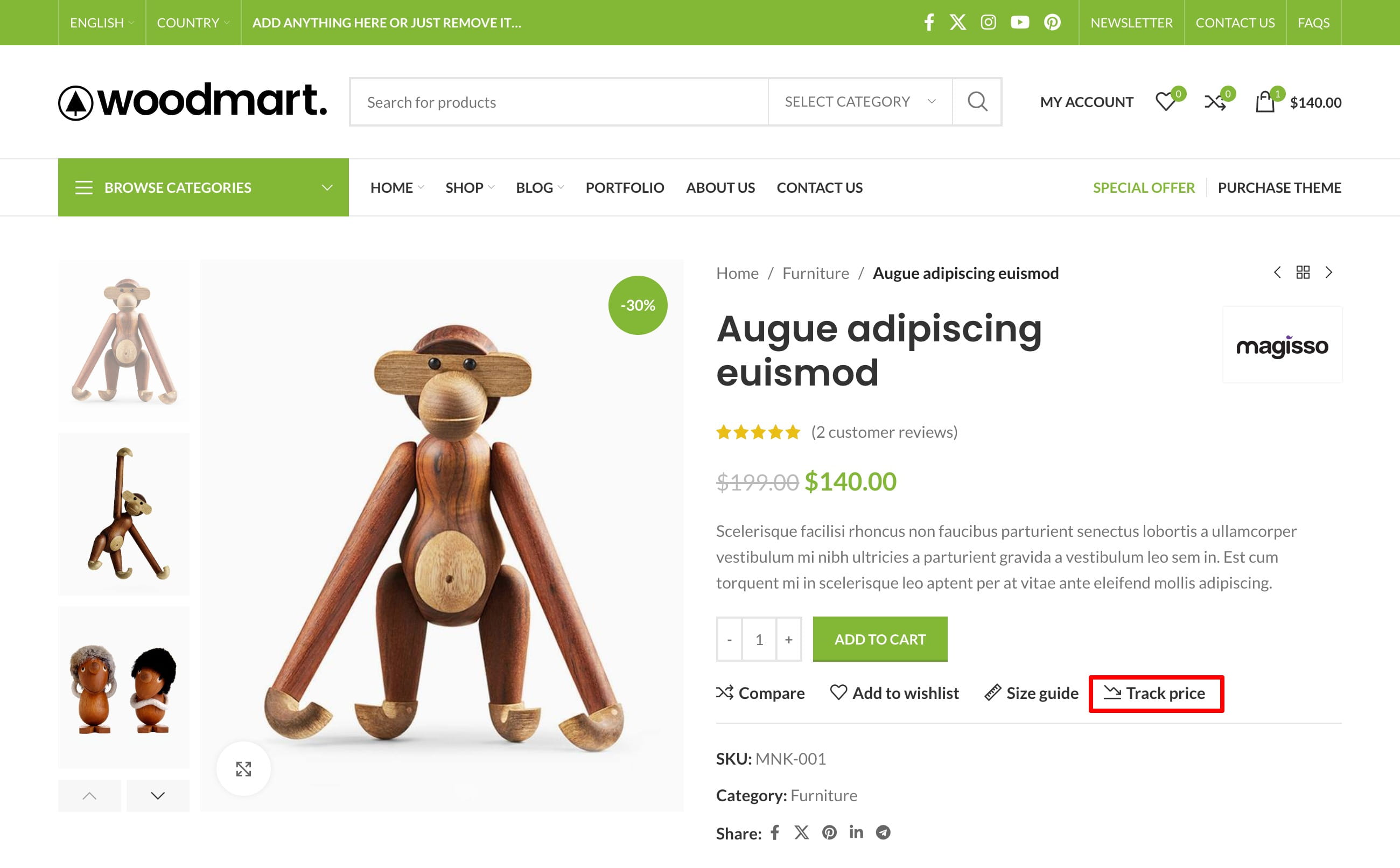
Clicking Track price opens a popup with the fields enabled in Theme Settings, such as email address, desired price, and privacy policy consent. For a logged-in customer, the product can be added without opening the popup when the account email is used and the other optional fields are disabled.
Manage tracked products
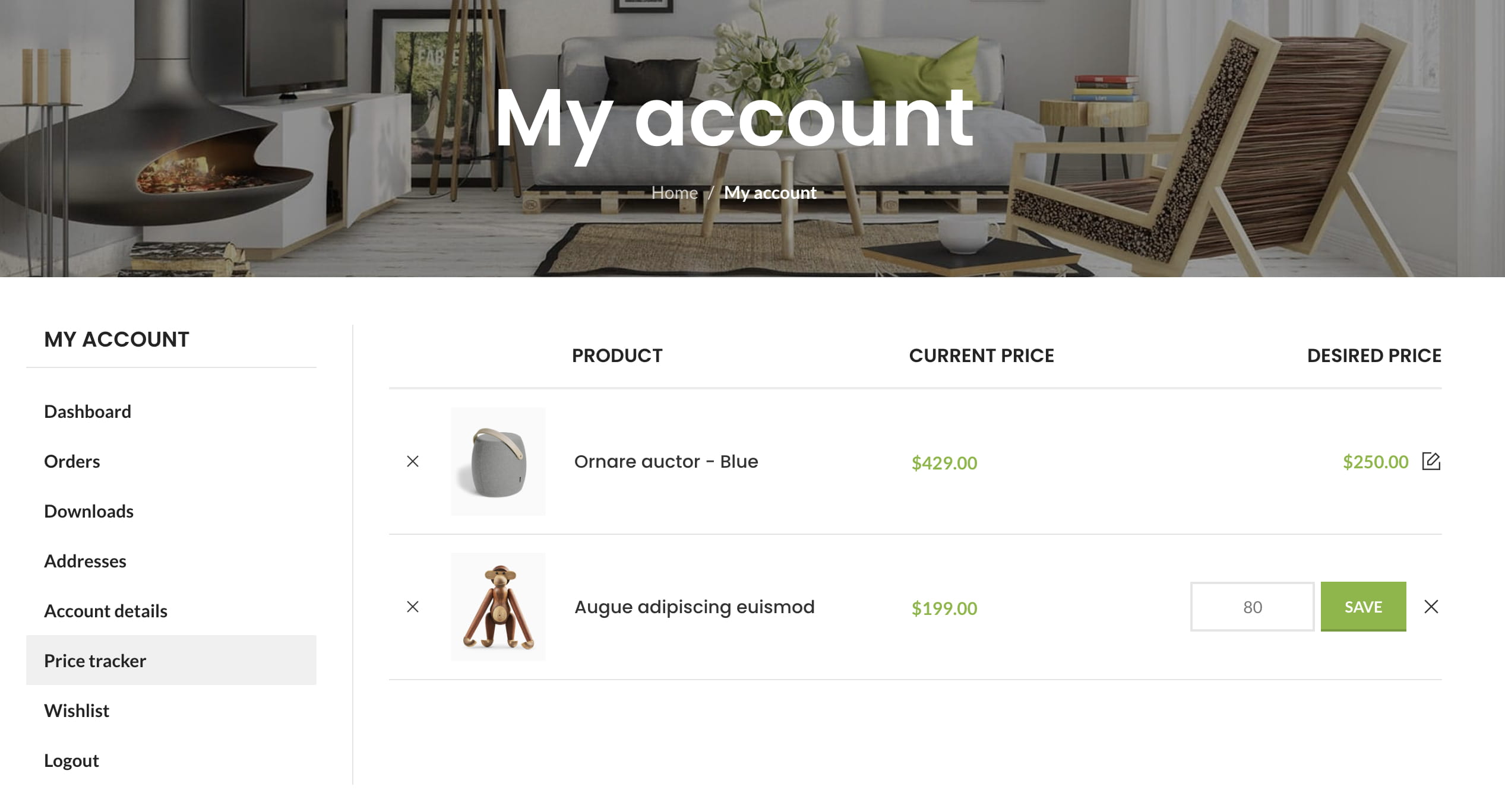
Registered customers can open My Account -> Price tracker to view tracked products, update the desired price when that option is enabled, or remove a product from the list. Removing a product stops its price-drop notifications.
Guests can stop tracking from the same product page while their tracking data is available in the current browser, or use the unsubscribe link included in a Price tracker email.
Configure Price tracker emails
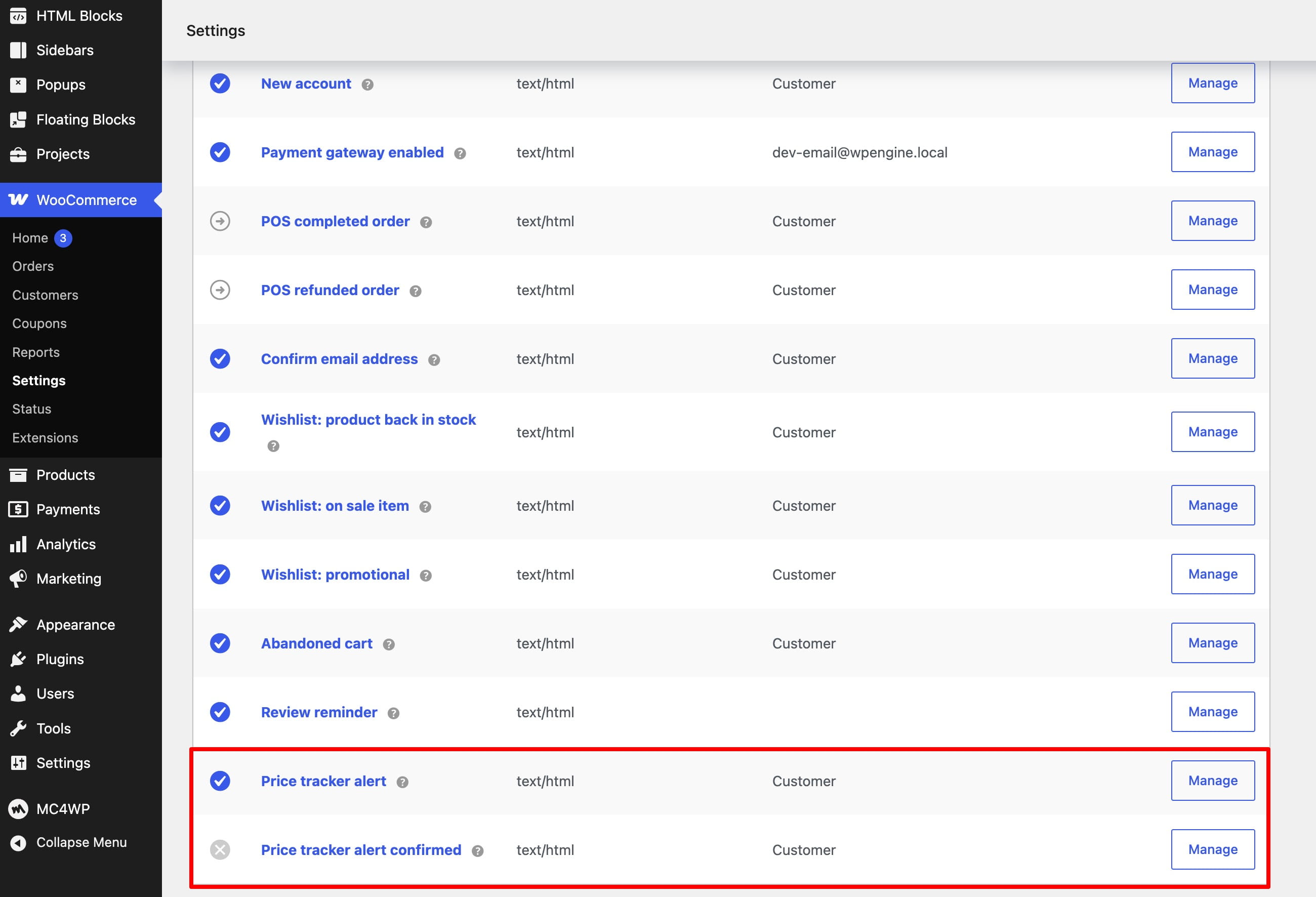
After enabling the feature, navigate to Dashboard -> WooCommerce -> Settings -> Emails. WoodMart adds two email notifications that can be configured using the standard WooCommerce email settings:
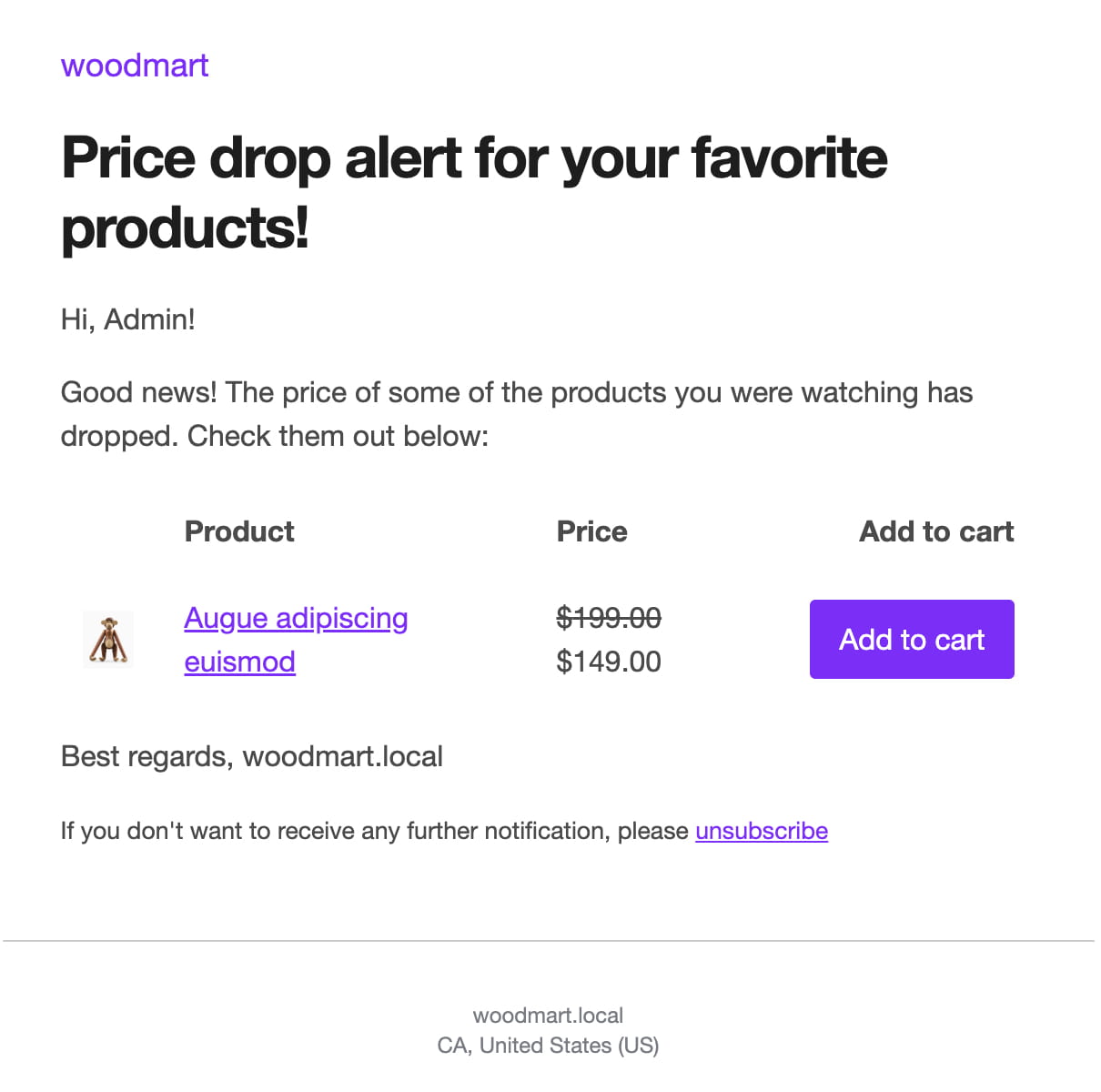
- Price tracker alert — notifies the customer after the tracked product price drops. The product must be in stock, and when a desired price is set, the new price must reach that value.
- Price tracker alert confirmed — confirms that the product was successfully added to Price tracker.
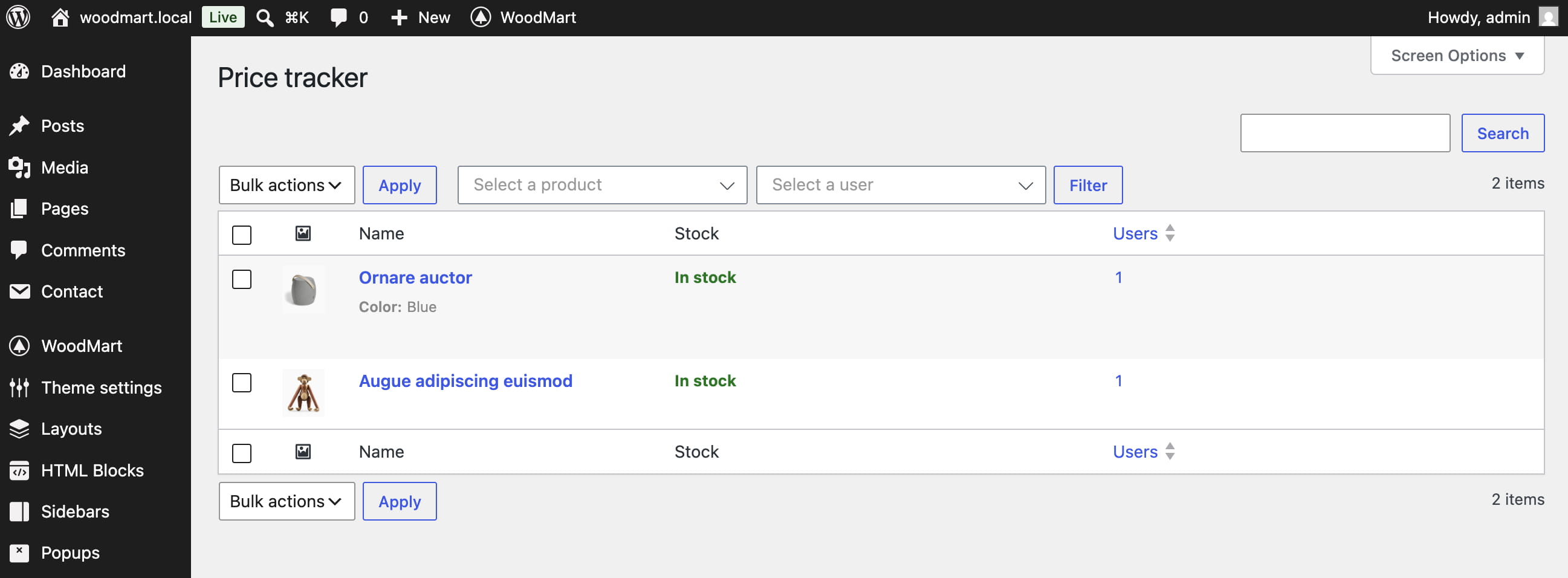
View tracked products
Navigate to Dashboard -> Products -> Price tracker. The first table lists tracked products and their subscriber counts. Open a product to view its subscribers and the desired prices they selected.